
Discord server alongside the team website (Hub Host)
Prerequisites:
-
This guide assumes you've set up at least a basic server, recommended to add channels for
#announcements,#rules, and#flight-informationbefore proceeding
You must stay in Team Mode (Website Team Mode is checkmarked) in HostHelper for setup.
You must stay in Team Mode in SuperDodoTerminal for setup.
Open HH and go to the
Host Modestab
Make sureWebsite Team Modeis checkmarked
Open SDT General Settings (
)
Make sureEDITING MODEis set toTeam ModeThis is how you tell the app which website/Discord settings you're setting up or editing, and how you're able to manage both from one app at the same time.
Discord is used for island status updates, community interaction, and subscriber channel access. It is not required to host, but it's a nice addition for your players and community.
Villager Requests, Item ordering, and Queue signup all occur through the website
Set your server up with a verification channel, when users login on the website they'll see a code on their player page, they say!verify 'code'to auto link their Discord account to their website accountOnce set up your bot will send updates for: online/offline status, open/closed gates, and whether villager requests, item ordering, or queue mode is enabled. You can also set custom messages to send per island among other things.
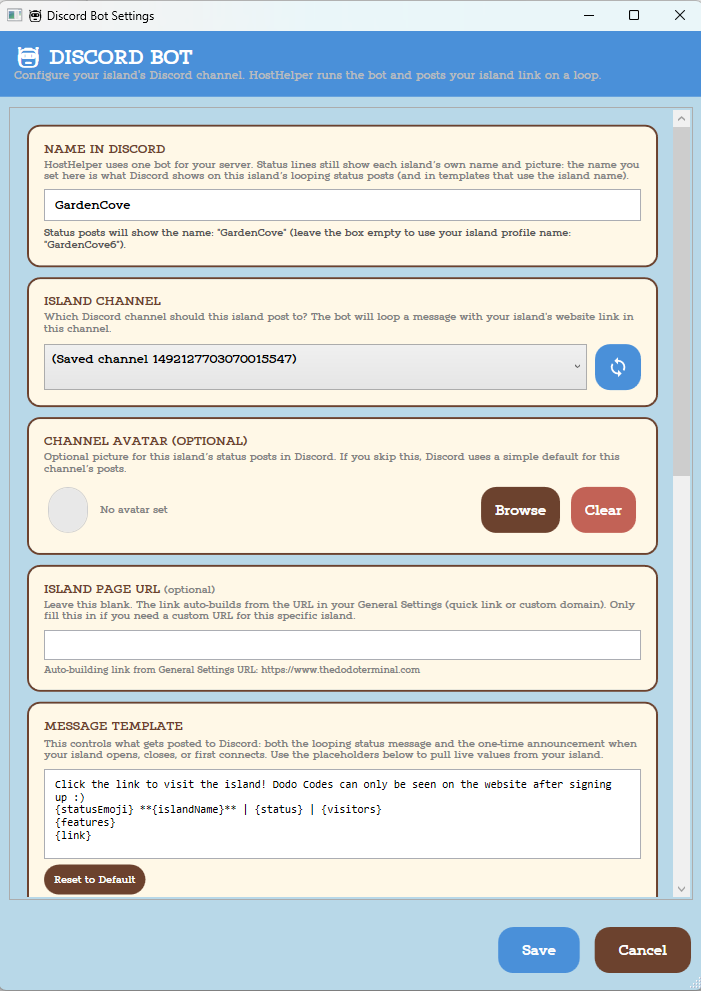
Each update automatically includes the link to its island page on the websiteThis guide walks you through setting up the unified bot in HostHelper + how to set up the settings for each island. You only use one bot for all of your islands, in each islands settings you can set a display name and avatar for that island to be used when messages are posted to its channel by the bot.
Discord support is a work in progress; if something doesn't work as expected please submit an issue on Github. If you need/want a support feature added for Discord send a message in the #feature-requests channel on (invite link coming soon)
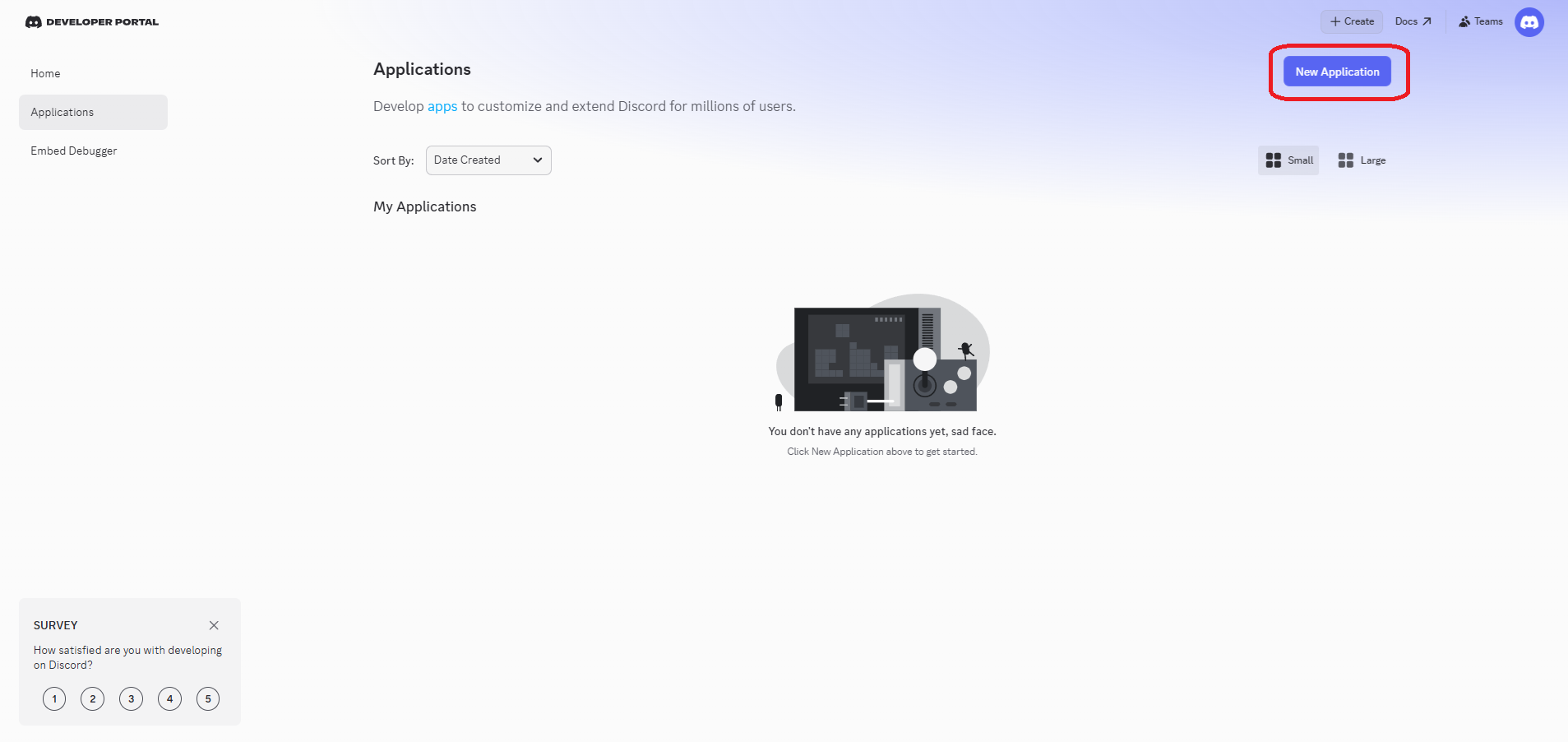
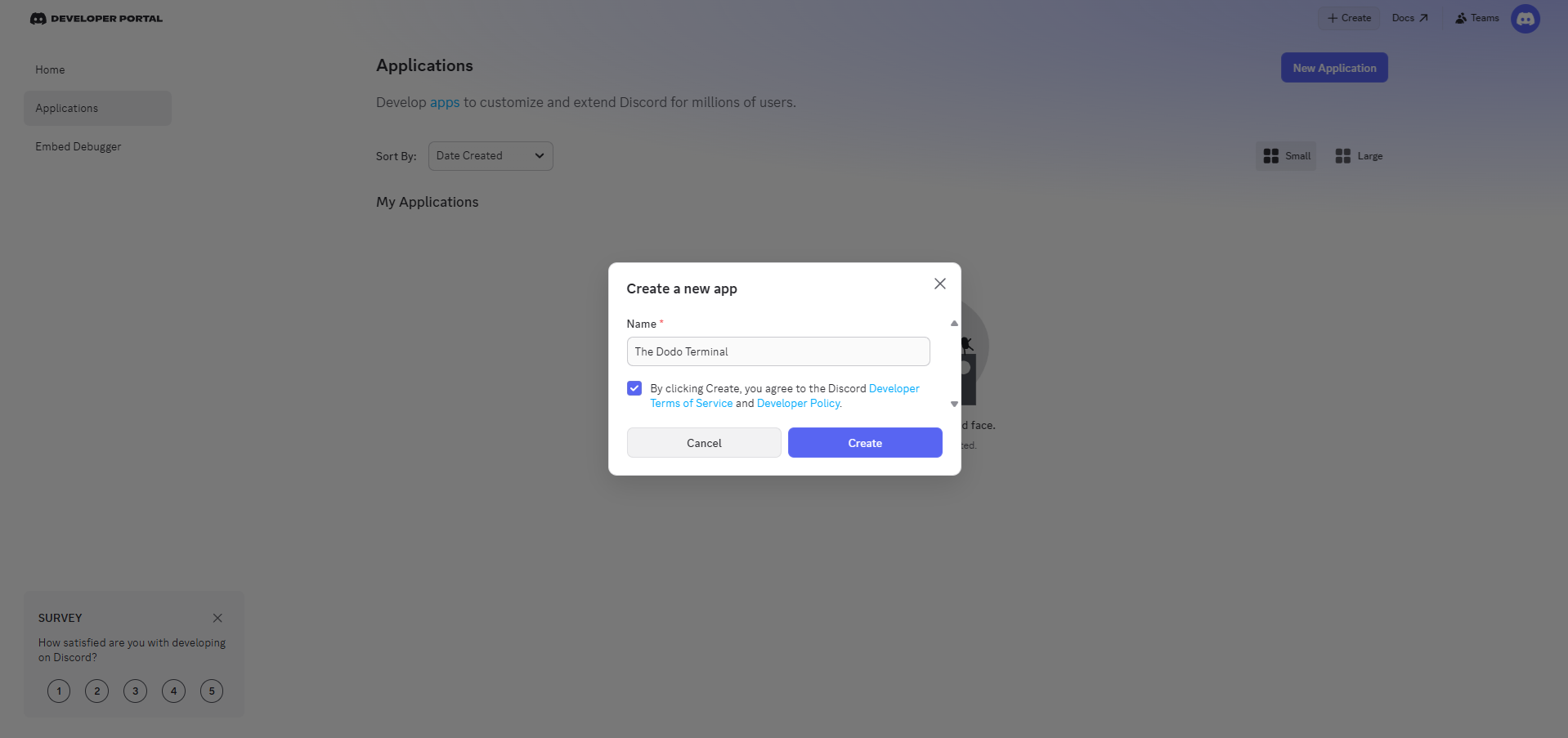
Step 1 — Create a Discord Bot & Connect it to HH & SDT
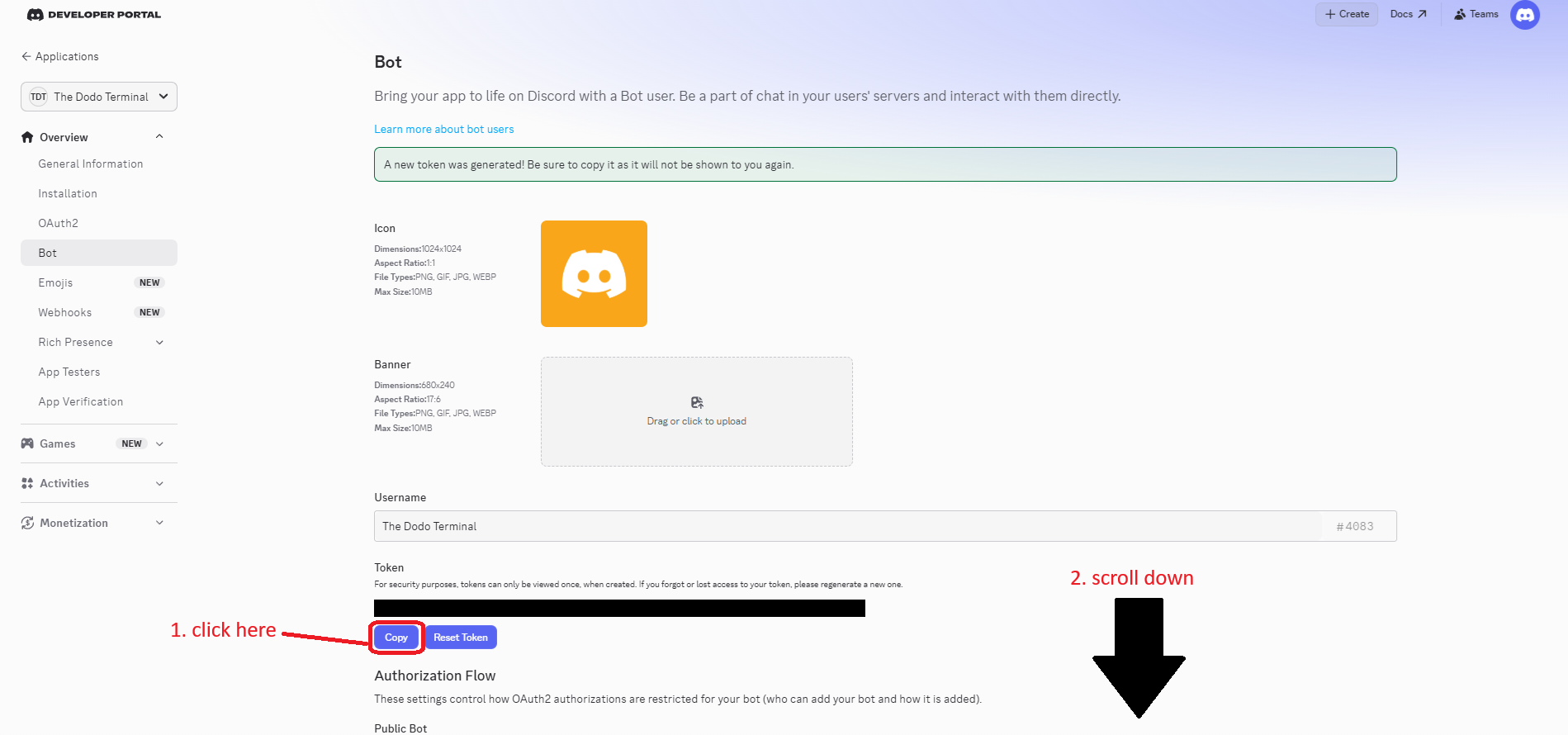
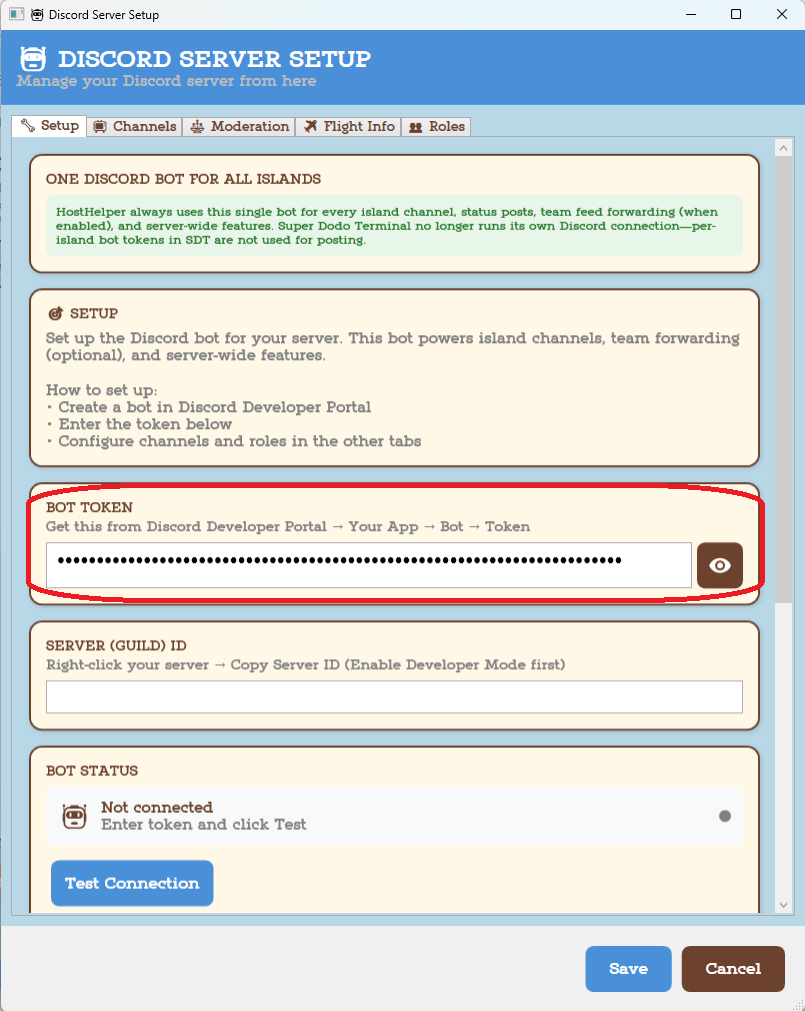
The bot token is what tells HH & SDT "this is my bot, connect to it." No token = no Discord features. It's that simple.
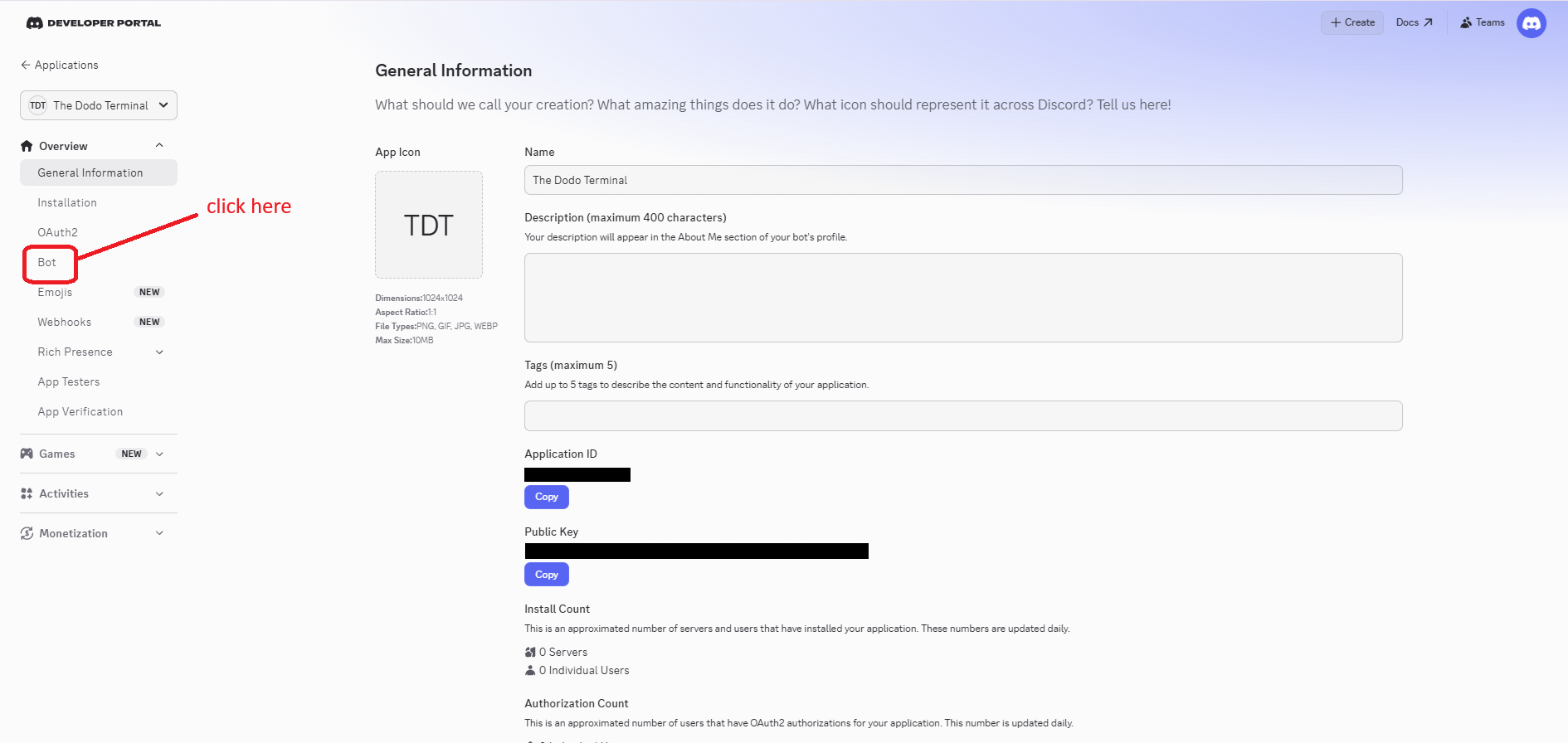
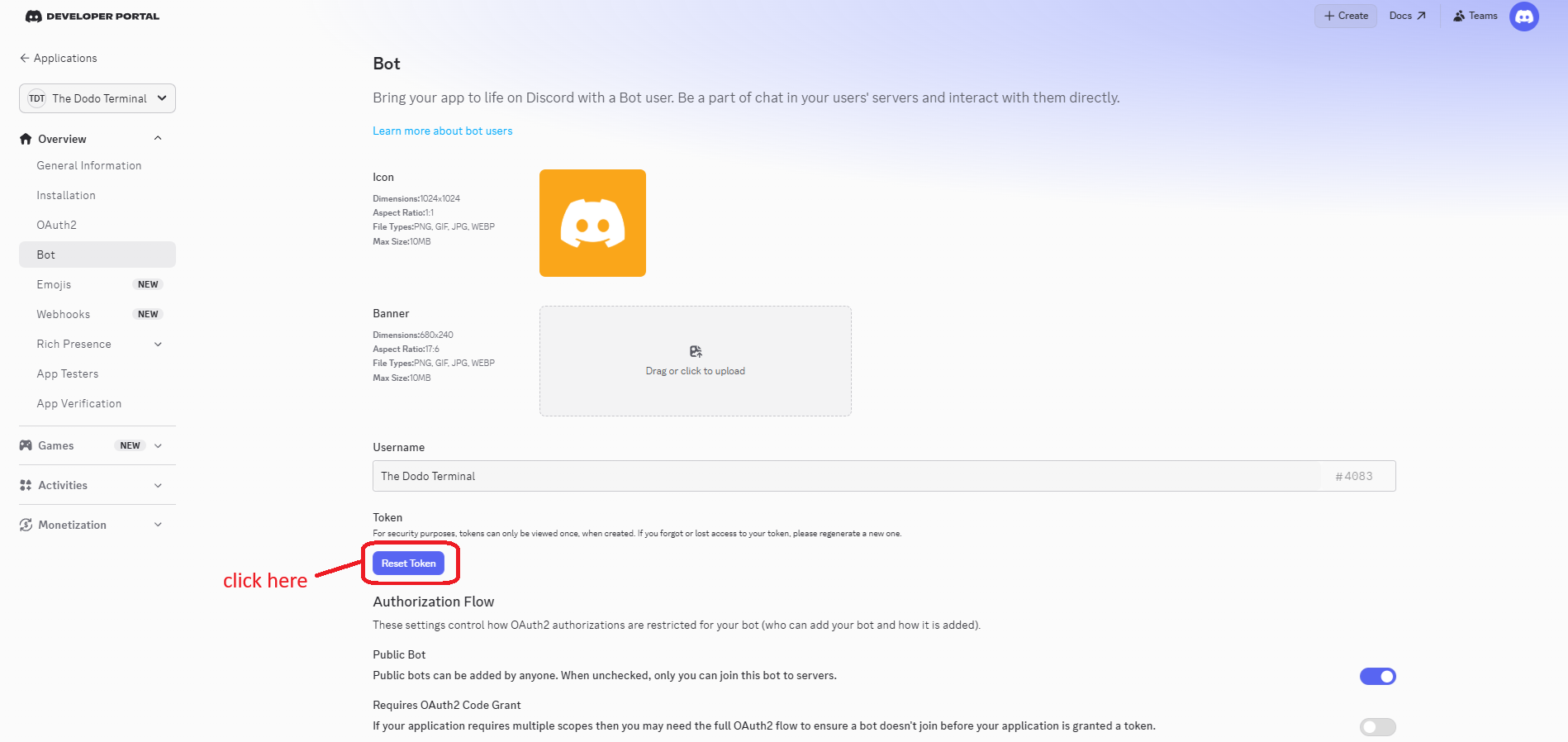
Your bot token is like a password. Never share it with anyone. If it gets leaked, come back here and reset it immediately. Anyone with the token can control your bot.
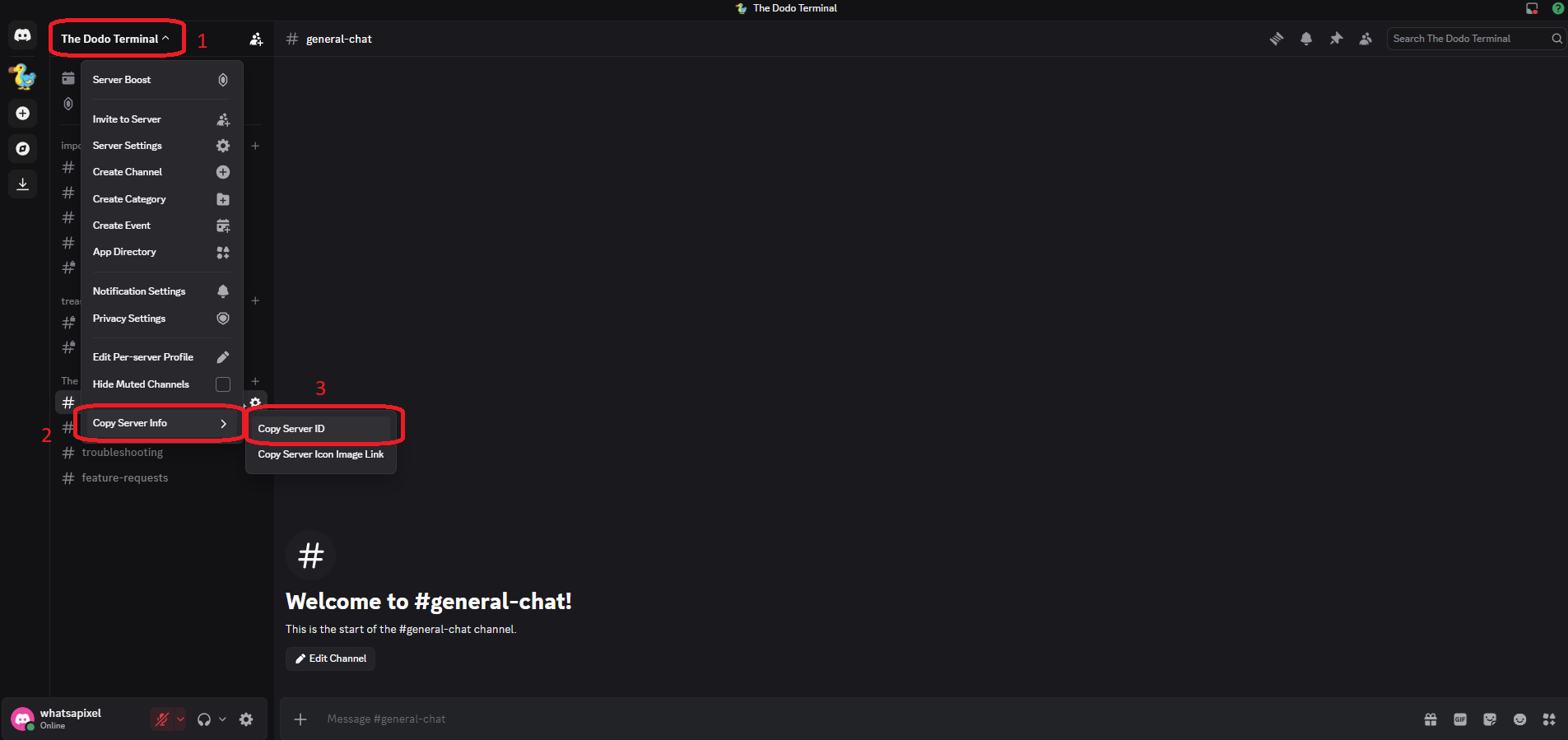
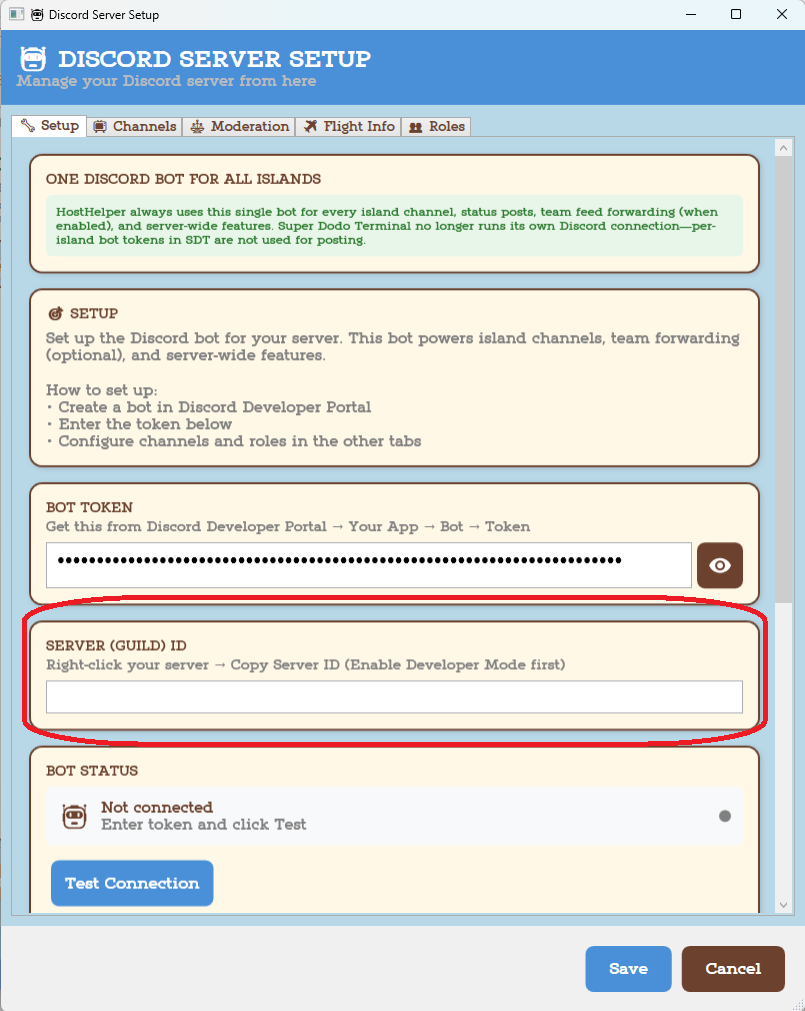
-
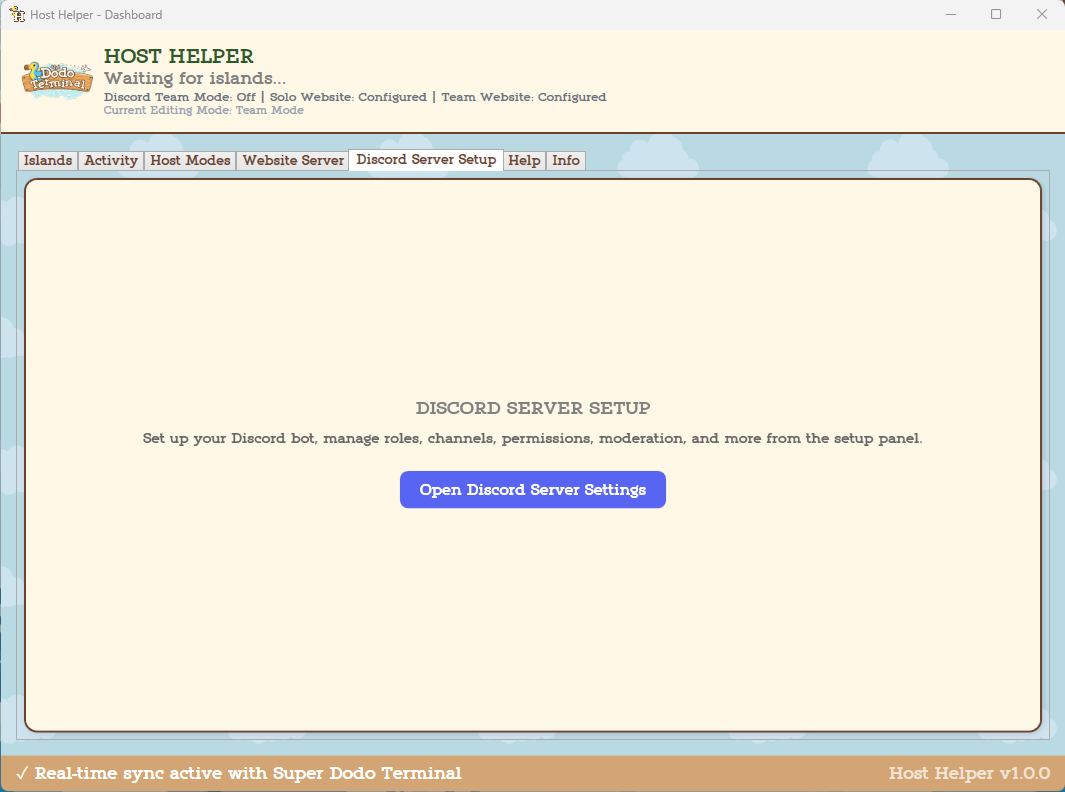
In the future it doesn't matter as much, but HostHelper is what runs the bot, so if it's running when you do the next few steps then HostHelper will try to finish setting up the server before you've customized anything.
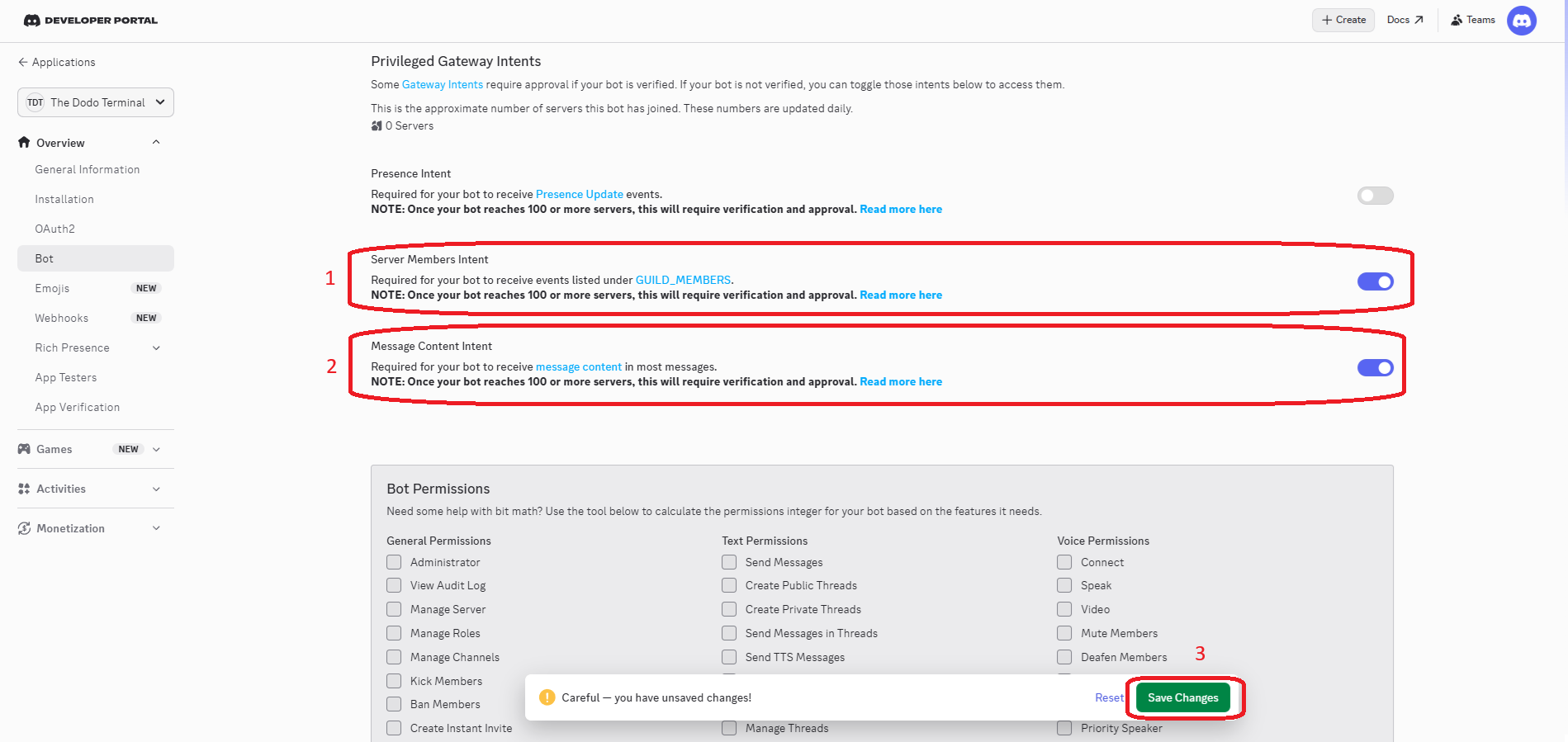
Bot settings:
Step 2 — Invite the Bot to Your Server
Helpful tips:
In HostHelper →
Discord Server Setuptab →Open Discord Server Settings→Channelstab you can enable auto-creating Island Channels when you add a new island tile.If you're offering subscriptions, paid island channels will be created/managed automatically when you mark islands as paid in the Monetization Tools if you enable auto-creation.
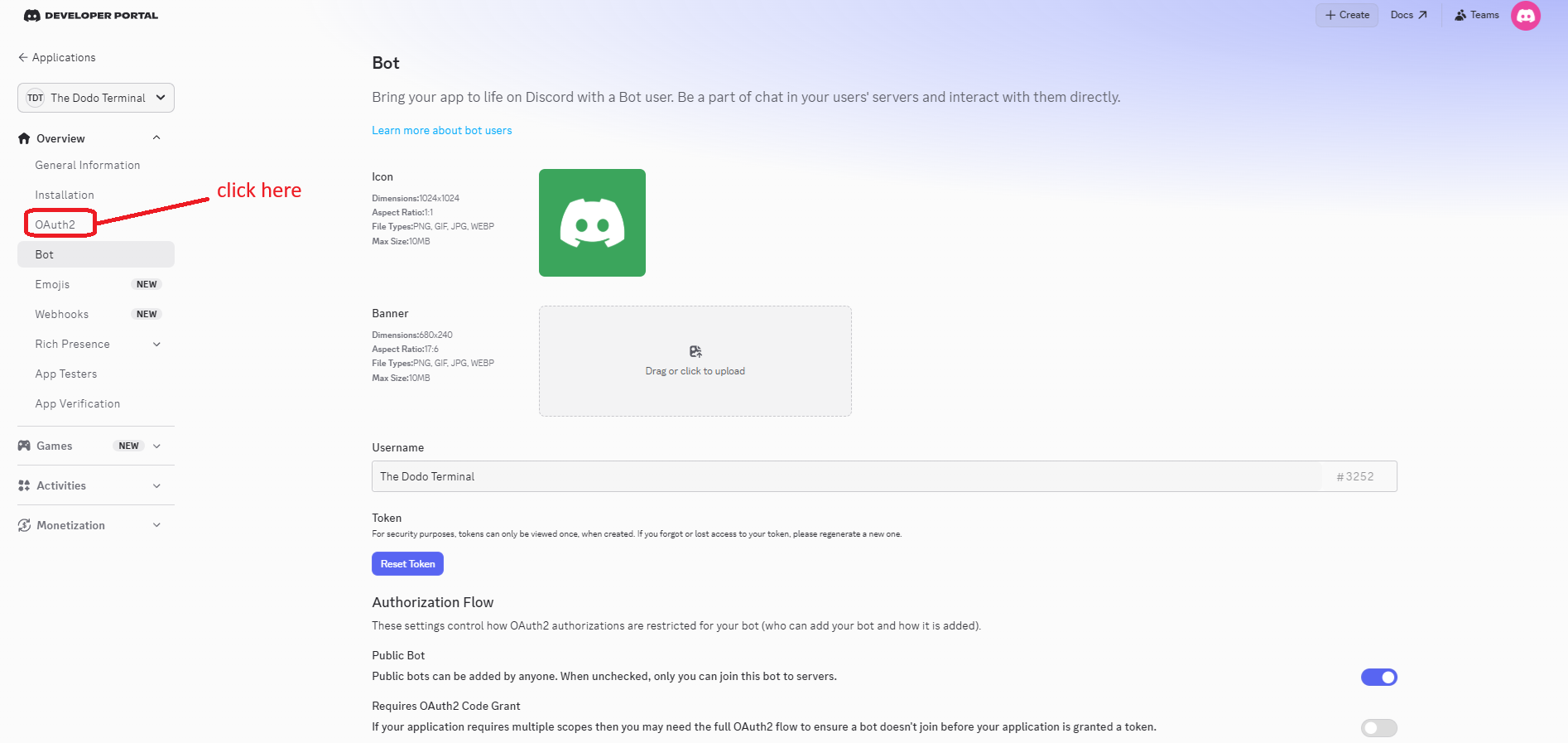
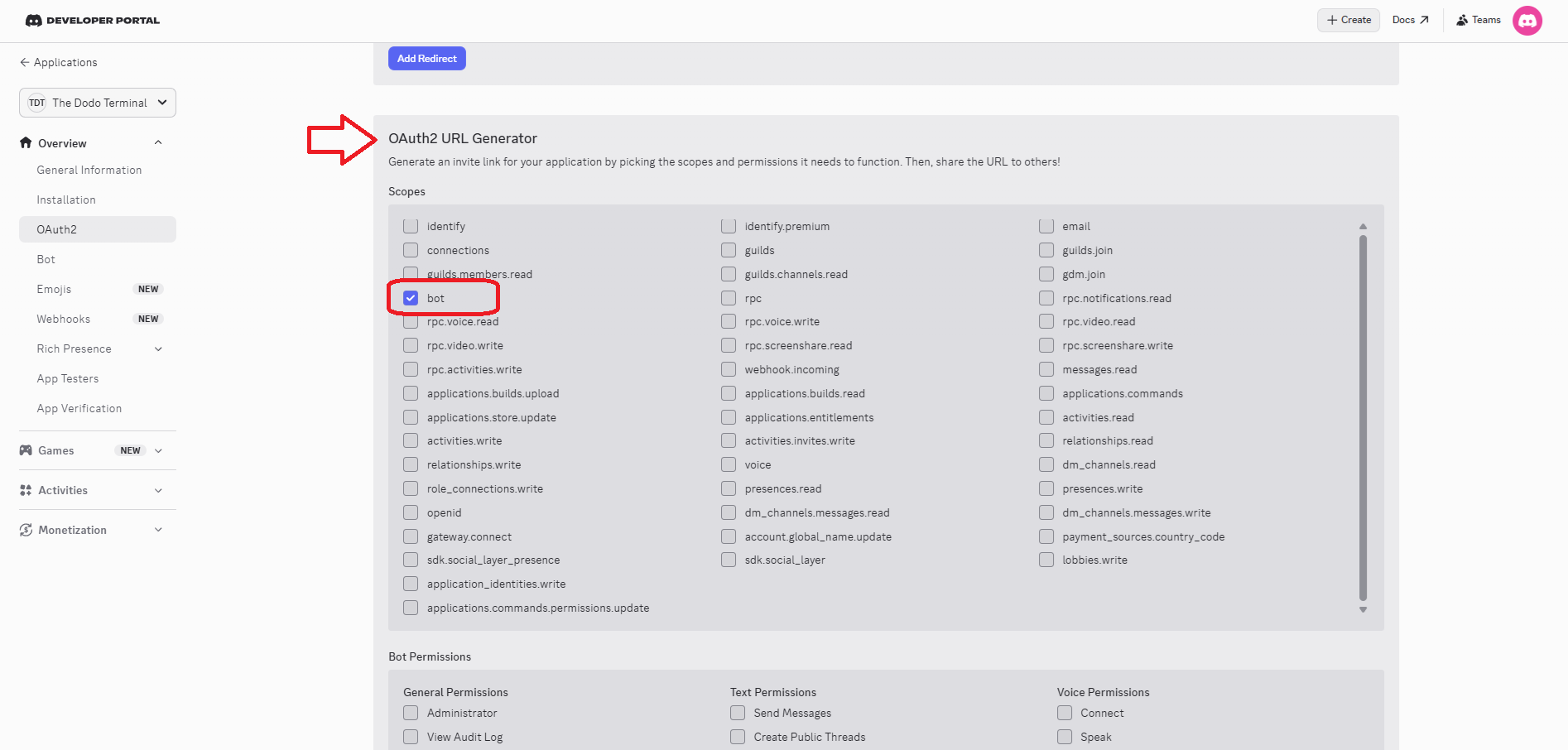
-
If you don't want to give Administrator, the minimum permissions needed are: Manage Channels, Manage Roles, Send Messages, Embed Links, Attach Files, Read Message History, View Channels
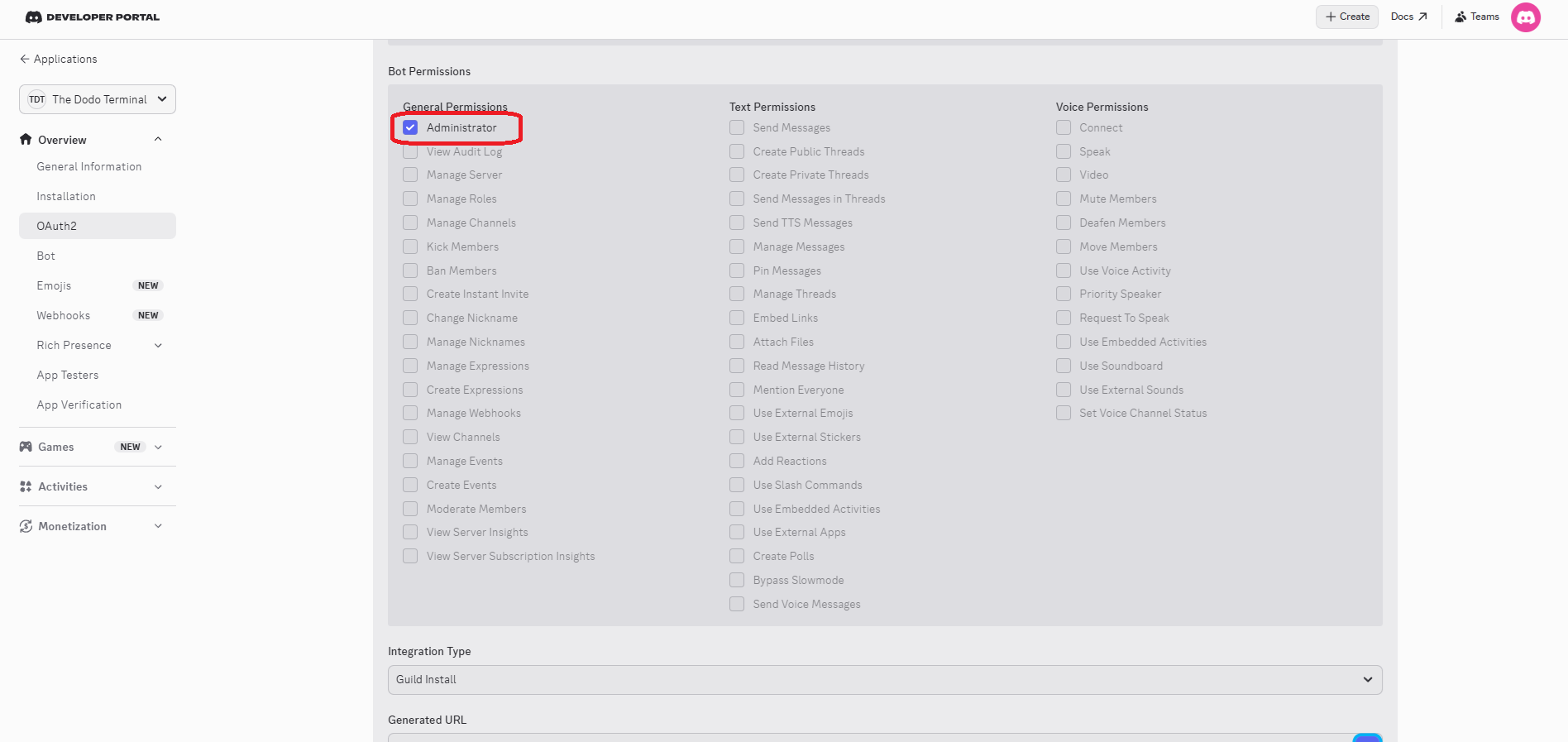
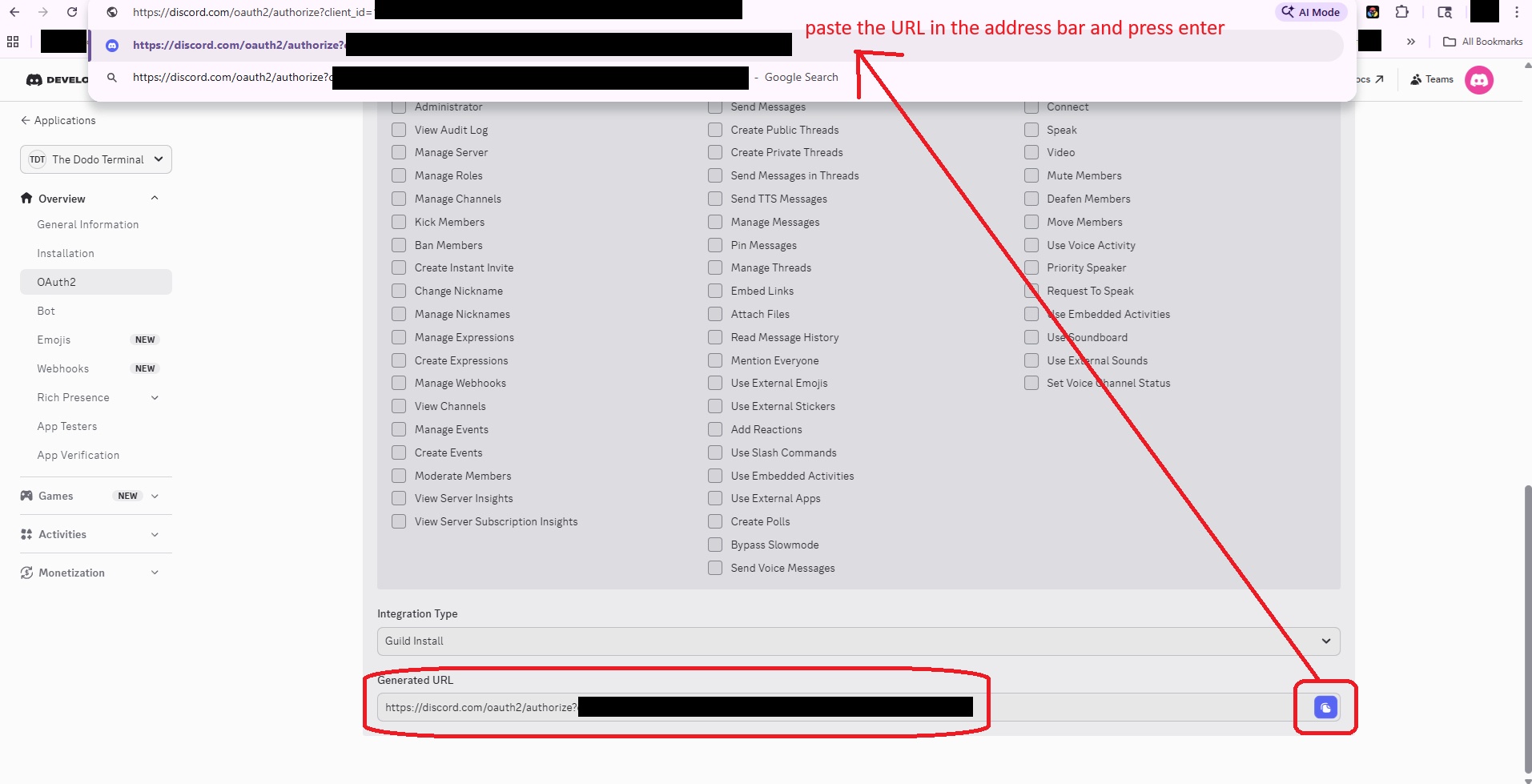
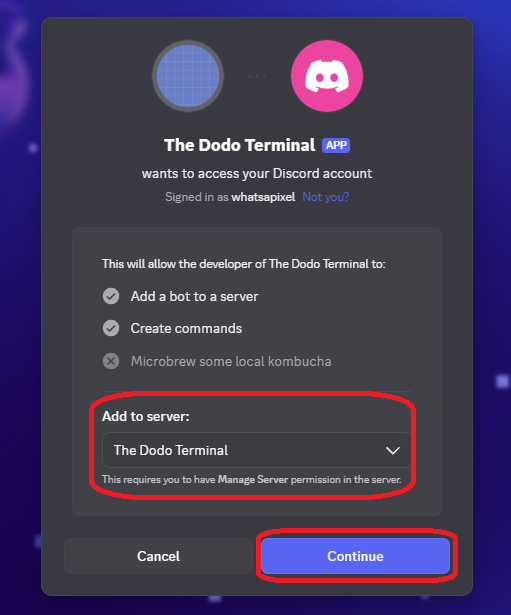

Step 3 — Finish Setup
The panel includes more info about each option not covered here, make sure you read it while setting up.
Scroll down to see a live preview of the Discord message that'll be sent for this island's channel.
Step 3.5 — Team Members
Your team members do not need their own bot tokens. Everything goes through your HostHelper because you are the HubHost. The tunnels you set up with each team member will include the Discord settings they input for each of their islands, along with the tunnel communicating back to them what roles/channels/etc exist. They'll also be able to edit/add channels, roles, and permissions as needed.
TEAM MEMBER INSTRUCTIONS:
Step 4 — Test it
If you're still having issues, reach out via (invite link coming soon) or Github
