

What You Need
| What | Details |
|---|---|
| Windows 10 or 11 | Both programs are PC apps |
| .NET 8 Desktop Runtime | If the program won't start, download it here (pick "Desktop Runtime" for Windows) |
| Nintendo Switch | With custom firmware (Atmosphere) and sys-botbase installed |
| Animal Crossing: New Horizons | Running on your Switch |
| Your Switch's IP address | Found in Switch Settings > Internet > Connection Status |
| Same Wi-Fi network | Your PC and Switch need to be on the same network |
| URL/Domain | Not required but highly recommended for smoothest experience; purchase through Cloudflare for less work |
Optional (but recommended)
- ACNH Treasure Islands - You can create them inside SDT but it's not recommended to do major map editing while multiple switches are connected. Crash handling is weak at best right now.
Install sys-botbase
Most likely you already have this and the latest release but double check.
sys-botbase is a tiny background program on your Switch that lets your PC communicate with it.
- Extract the zip
- Copy the
atmospherefolder to your SD card root - The file should end up at:
SD:/atmosphere/contents/430000000000000B/exefs.nsp - Reboot your Switch
There's no visible indicator that it's running, it works silently in the background. You'll know it's working if SDT connects.
Recommended file organization
This alone can save you a lot of headache down the road.
Use something simple like 1, 2, 3. Masking tape on the back works perfectly.
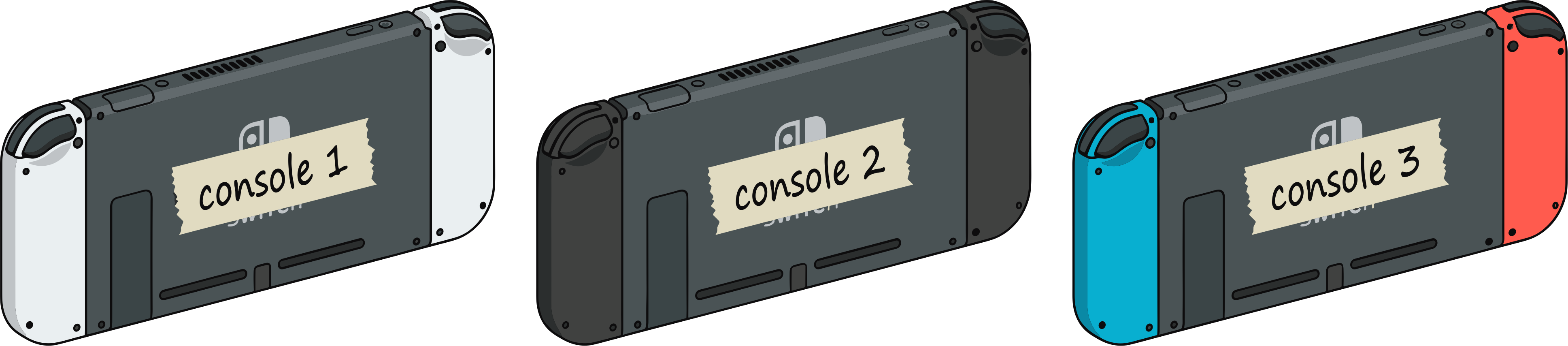
Example: Console 1, Console 2, Console 3
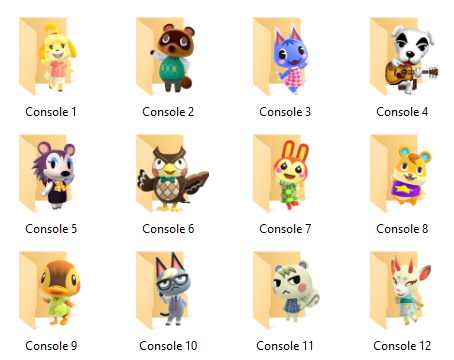
Optional: use these icons to visually separate them.
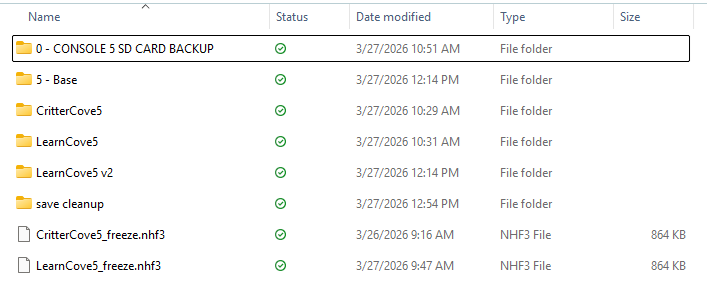
Use clear names like:
5 - Base SaveGarden5Clothes5Materials5
Things to keep backups of or organized well:
- Base saves (at least 1 dedicated "this save can open the gates successfully" save per CONSOLE)
- Treasure Islands
- Freeze Files (there are now two types - traditional freeze files which you may know well, and Freeze2 files used for automated map swapping. (Coming Soon!)
Find Your Switch's IP Address
- On your Switch, go to System Settings
- Go to Internet > Connection Status
- Write down the IP Address (looks like
192.168.1.50)
Download The Dodo Suite
This is the full suite — Super Dodo Terminal (the control center) and HostHelper (team mode + player accounts) ship together in the same zip.
Install & run
- Extract the zip to any folder (Desktop is fine). You'll end up with a
SuperDodoTerminalfolder and aHostHelperfolder inside. - Start with SDT: open the
SuperDodoTerminalfolder and runSuperDodoTerminal.exe. - HostHelper is optional for solo hosts — you only need it later if you want team mode or player accounts. It lives in its own folder, run
HostHelper.exewhen you're ready.
The first time you launch SDT or HostHelper, Windows may show a blue "Windows protected your PC" screen. That's because the apps aren't code-signed yet (signing certs are $$$). Click More info, then Run anyway.
On Windows 11, SmartScreen may block the app entirely with no "Run anyway" option. If that happens, you'll need to temporarily turn SmartScreen off in Windows Security → App & browser control → Reputation-based protection settings, launch the app once, then turn it back on.
Your First 5 Minutes
1. Launch Super Dodo Terminal
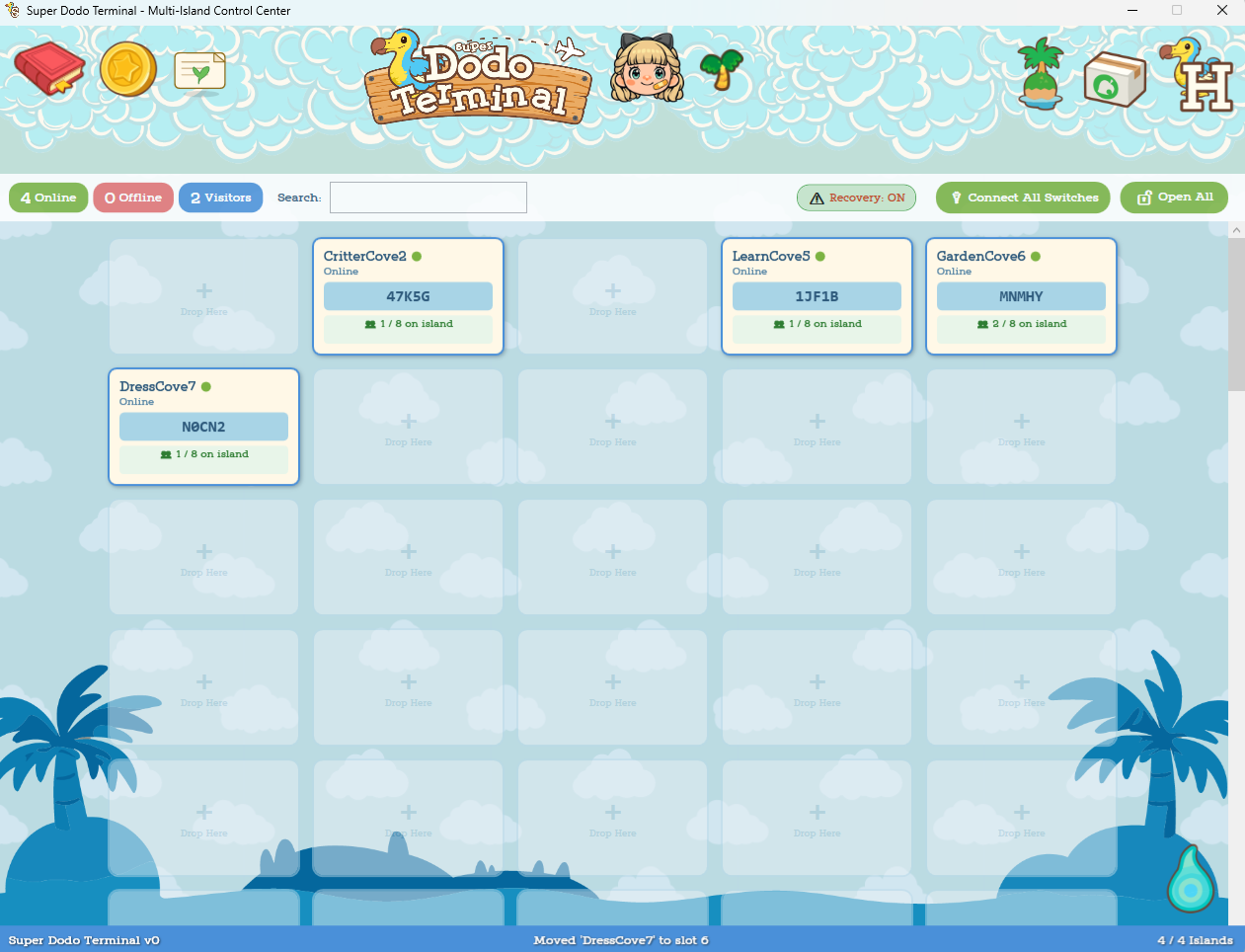
You'll see the Multi-Island Control Center featuring a grid of island slots and icons. This is your home base for everything.

App-wide SDT settings

Subscriptions and access tools

Requests and reports


View and manage profiles

Quick setup

Move island saves
Guided setup tools

Launch HostHelper

Clean export for issue reporting
2. Set Up a Profile
Each Treasure Island needs a profile.
A profile stores everything for that island, including:
- Switch IP
- Anchors
- Host settings
- Freeze map and behavior settings
You only need to set this up once per island.
Profiles are flexible. You can change Switch IPs at any time or move an island to another console using the Island Migrator.
Profile details

Profile groups

Console IP addresses

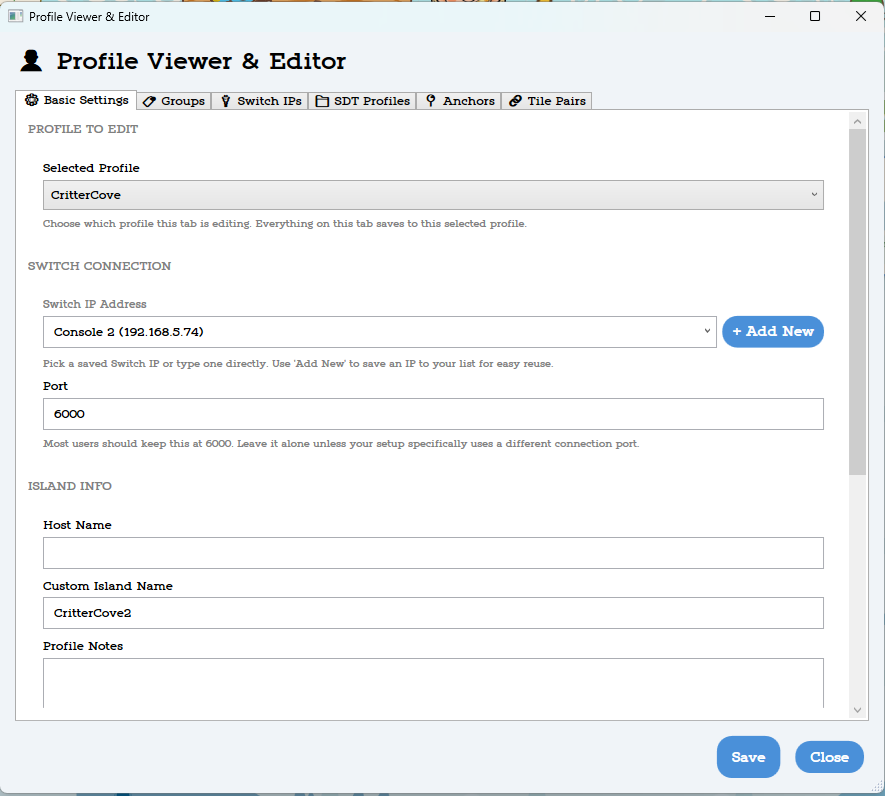

Profile list

Saved positions

Island tile links
Quick Setup Flow
) in step 3.
3. Add an Island
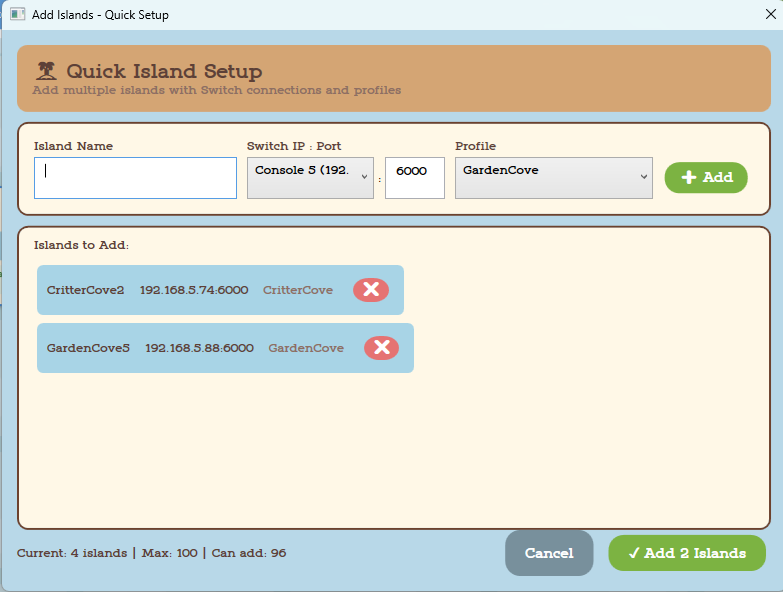
Click the Add Islands button
()
to open the Add Islands - Quick Setup panel.
Treasure Island Name + Console Number/Name (ex: Garden2)
Use the dropdown menu to select a Switch profile and a Treasure Island profile.
When you click + Add, you’ll see a preview in the panel.
Continue adding islands, or click ✔ Add All Islands to finish.
4. Connect
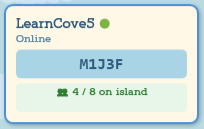
Click to open the island details panel
 Island tile
It works just like that in the app!
→
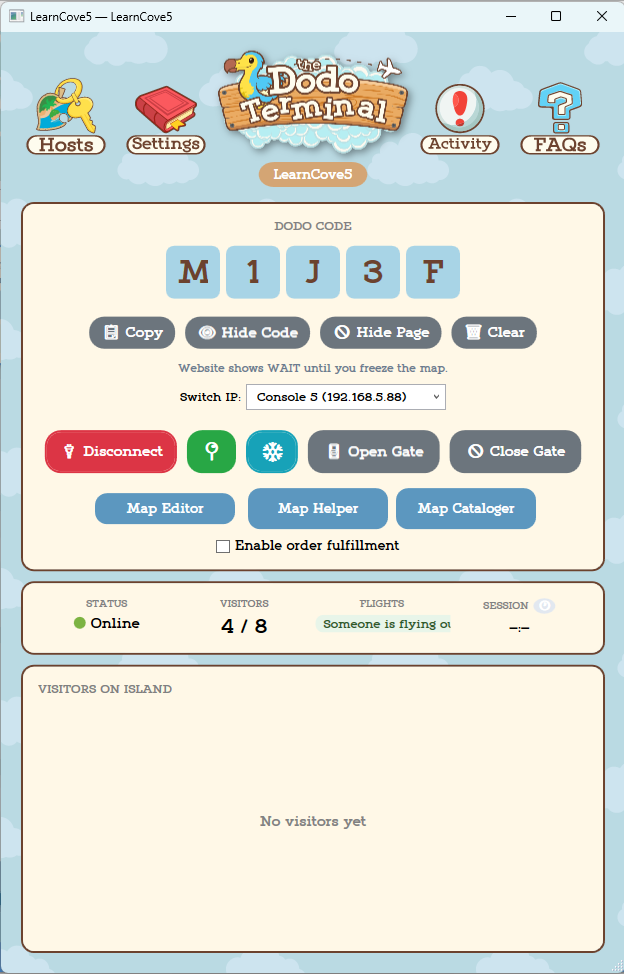
Island detail panel
- Double-check the IP address
- Make sure your Switch and PC are on the same Wi-Fi
- Verify sys-botbase is installed correctly
- Try restarting your Switch
5. Anchor Setup
The Anchors button ( ) opens Anchor Setup, where you can optionally set a host wait position (where your player stands after opening the gates).
- Reads your save data when you connect or open gates
- Finds your airport coordinates
- Calculates all 6 anchor positions automatically
- Default is the pier in front of the airport
- This is where your character stands after automatically opening your gates
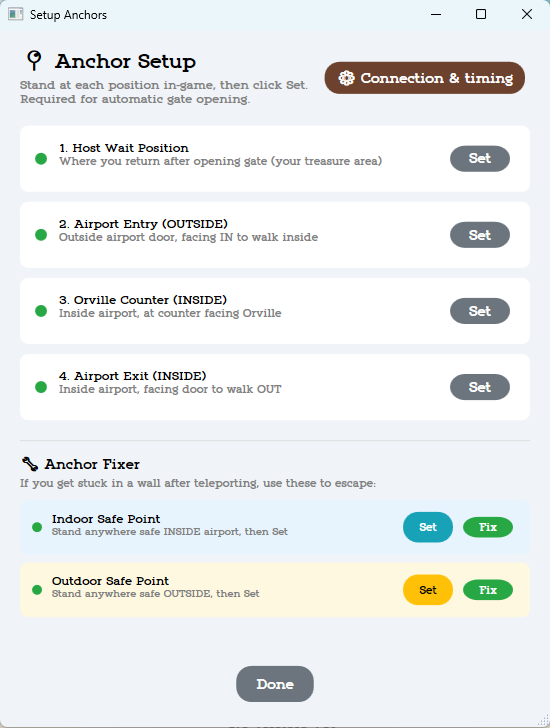
You’ll be able to create automated host behavior like walking paths, reactions, and messages so your player appears active on the island.
6. Open the Gate!
Click Open Gate in Super Dodo Terminal. Then don't touch your controller! You don't have to remove your controllers. Virtual controller coming soon.
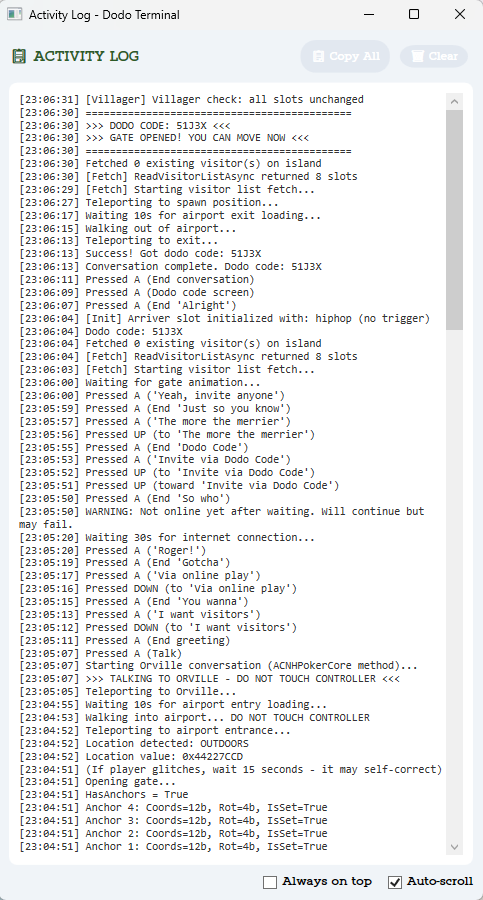
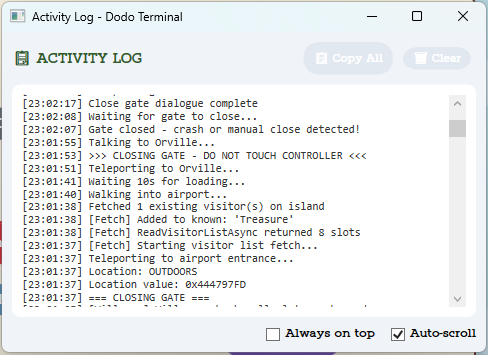
The program takes over
- Teleports your character to the airport entrance
- Walks into the airport
- Teleports to Orville and handles the dialogue
- Opens the gate and reads the Dodo code
- Exits the airport and returns to your spawn point
If your Dodo code appears in SDT once your gates open you can continue setting up.
Do You Need HostHelper?
Yes. You can technically run a limited, non-customized website using just SDT or your own set-up, but if you want:
- A team website - One site showing islands from multiple hosts
- A custom website - Your own branding, custom pages
- A plug and play experience
Start with both. See the HostHelper guide for details.
What's Next?
Ready to finish setting up? Head to the Setup Guide for a step-by-step walkthrough that covers everything from island configuration to getting your website live.
Or explore at your own pace:
- Super Dodo Terminal - Learn about map freezing, visitor tracking, host settings, and everything else SDT can do
- Your Website - Show your islands online so visitors can find your Dodo codes
- Discord - Post automatic updates to Discord
Updating
To update Super Dodo Terminal:
- Download the new version
- In the OLD version of SDT click the white cardboard box to the left of the HostHelper shortcut.
- Make sure "Update/Fresh Install Setup mode" is selected and click "Save Current Setup"
- Wait a few minutes for the folder to generate and save. It'll open the folder location once it's done. Copy the address bar to find it quickly in the next step.
- Open the new version of SDT and click the white cardboard box to the left of the HostHelper shortcut.
- Click "Import". It should open to the correct folder location but if it doesn't, paste what you copied.
- Let set up run.
- Happy Hosting!
This same process can be used for daily schedule changes too, when exporting just change mode to "Other Setups mode". Rename the exported folder so you can keep track of what it is. You can also add a .txt file listing the island pairs to the folder for quicker referencing. This is most useful if you want to run a set schedule of islands per day.
