
Back to Super Dodo Terminal for the main Control Center overview.
General Settings (whole app)
App-wide settings (**not** per-island). Open General Settings ( ) in the **top bar** (header).
➸ UI preferences
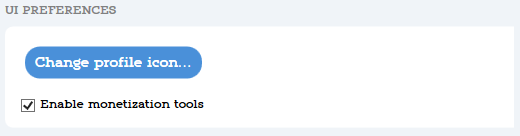
These settings adjust what you see for your profile icon and if you see the monetization icon on the main control center.
- Change profile icon - Pick the picture used for the **Profile** header button.
- Show/Hide Monetization tools icon - Hide the bell coin icon if you don't plan on monetizing. This does NOT turn off the support/donation links in DodoBuilder.
➸ Cloudflare Tunnel
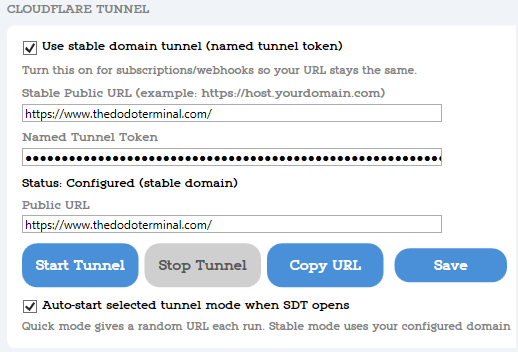
These settings are for making your built-in website reachable from the internet.
- Use stable domain tunnel (named tunnel token) - You must checkmark this if you want to use monetization tools or webhooks.
- Stable Public URL - Example shape: `https://host.yourdomain.com` I recommend setting up a Cloudflare account and purchasing your domain through Cloudflare for the smoothest setup experience.
- Named Tunnel Token - This comes from Cloudflare.
- Status read-only status indicator, if it shows "Configured" you completed stable domain setup correctly and SDT is communicating with CloudFlare.
- Start Tunnel/Stop Tunnel/Copy URL
- Save Tunnel Settings
- Auto-start selected tunnel mode when SDT opens
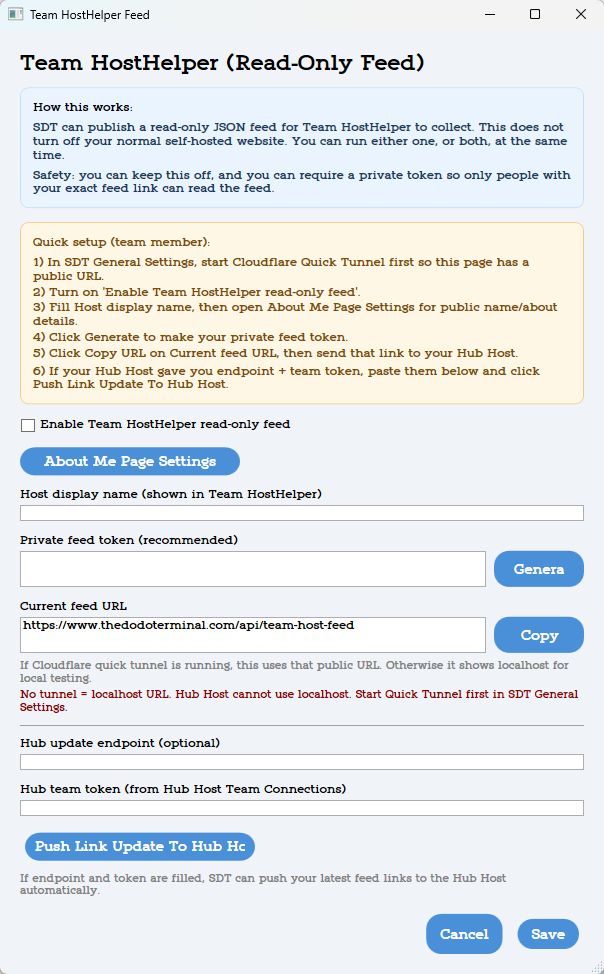
➸ Team HostHelper Feed
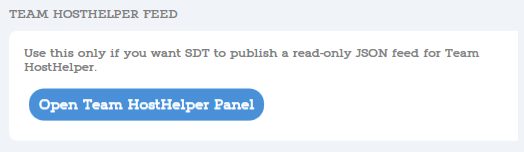
Who needs this?
Only if you’re a team member and someone else (the Hub Host) runs the main team website in HostHelper.
If you only use solo mode, or you are the Hub Host, you can ignore this section.
Only if you’re a team member and someone else (the Hub Host) runs the main team website in HostHelper.
If you only use solo mode, or you are the Hub Host, you can ignore this section.
What does it do?
SDT can publish a read-only JSON feed for the Hub which shares connection/online state, status, Dodo codes (when rules allow), visitors, map and boarding-pass links, monetization and order/villager flags, and more.
This is how your islands appear on the team website, along with your about page if set up.
SDT can publish a read-only JSON feed for the Hub which shares connection/online state, status, Dodo codes (when rules allow), visitors, map and boarding-pass links, monetization and order/villager flags, and more.
This is how your islands appear on the team website, along with your about page if set up.
Works Alongside Solo Mode
Turning this on does not disable your solo setup.
Turning this on does not disable your solo setup.
- Your dashboard still works
- Your solo website still works
- Your styling still comes from DodoBuilder and island settings
This panel only affects what the Hub Host sees.
Feed URL & Security
Your team feed uses one URL on your tunnel and can optionally be locked with a private token.
⚠️ No Token
-
There is one feed URL on your tunnel:
https://www.yourdomain.com/api/team-host-feed - Without making it private, anyone with this base URL can read and use your feed.
Enabling Team HostHelper read-only feed turns this on automatically.
🔒 Private Feed Token (Recommended)
- Click Generate
-
Your URL then includes
?token=...at the end.
Only people with the full URL (including token) can access your feed.
Tunnel Requirement
You must have a public tunnel URL:
- Quick link ✅
- Stable/custom domain ✅
Without this, the Hub cannot reach your feed.
Hub Connection
You can ignore Hub settings if:
- Using a custom/stable domain
- Running solo + team at the same time
Most team members (quick link users) will need:
- Hub update endpoint
- Hub team token
Your Hub Host will send you instructions from HostHelper that include these values.
Manual
- Click Copy URL
- Send it to your Hub Host
Automatic
- Enter Hub update endpoint
- Enter Hub team token
- Click Push Link Update To Hub Host
➸ HostHelper Quick Start
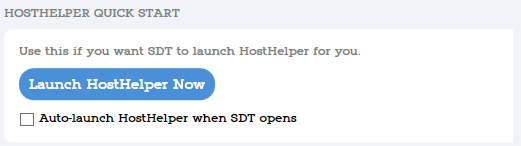
- Launch HostHelper
- Enable auto-launching HostHelper when SuperDodoTerminal is launched
Host Helper must be running for player account services on your Dodo site, this just helps speed up setting up anytime you need to restart the app suite.
➸ Default Island Boarding Pass
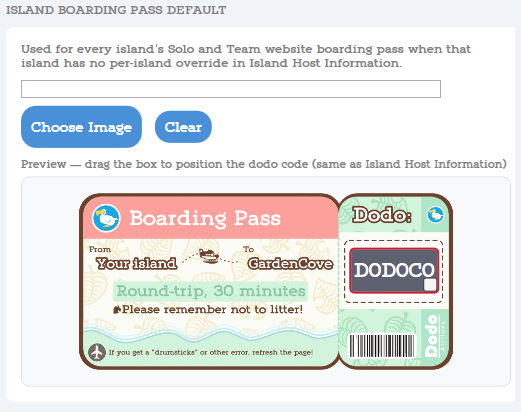
This is the default boarding pass used for any island that doesn't have a Boarding pass uploaded in SDT -> Island Detail Panel -> Host Settings -> Island Host Details.
- SuperDodoTerminal is shipped with the default pass you see above. You're welcome to use it, just don't claim you made it. Assets by whatsapixel
- You can upload your own default pass to replace the SDT default one. Use the black box to position where the Dodo Code should show on your boarding pass.
➸ Default Island Boarding Pass
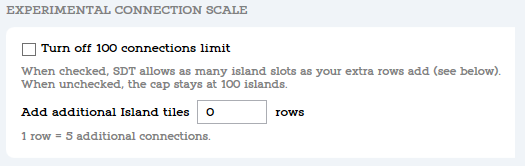
If you have fewer than 100 switch consoles, you don't need this setting. This setting is for large scale hosts.
- By default SDT has 100 island limit; just so there isn't an endless number of tiles on the Control Center
- You can Turn off the 100 connections limit anytime here.
- Use the Add additional island rows to add more island tiles. 1 row = 5 more island tiles.
What's next
- Super Dodo Terminal - Main grid, toolbar, platform tags, app-wide settings, backups
- Profiles - All about Profiles
- Island Migrator - Tool for migrating islands between consoles faster
- Monetization - Paid islands, subscriptions, and visitor approvals
- Troubleshooting - Connection and gate problems
