

Back to Super Dodo Terminal for the main window, toolbar, anchors, gates, and map freeze.
New here? Work through Getting Started first (connect, anchors, first gate open).
⇛ Overview
When you click an Island Tile, it opens the Island Detail Panel.
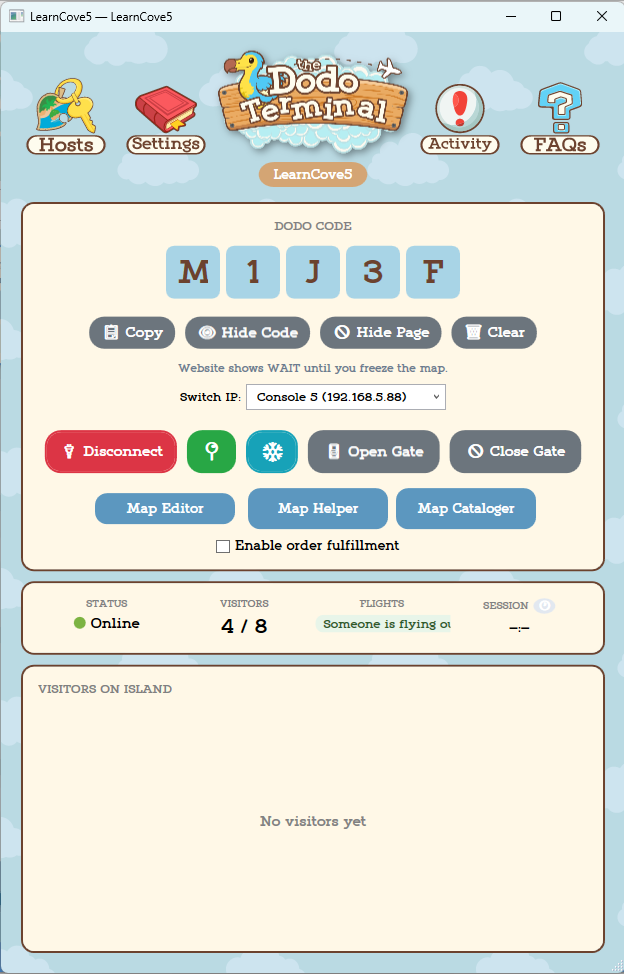
This is the control panel for that island. It’s where you connect to the Switch, manage the map, manage the gates, and setup behaviors.
⇛ What you see on the panel
 Host Settings
Website, Discord, Twitch
 General Settings
Behavior, access, freeze, speed
 Activity Log
Bot log for this island
 FAQs
FAQsOpens this wiki page


Large Dodo code area — Shows the current Dodo code when the gate is open

Code action buttons — Copy, hide code, hide page, or clear the displayed code
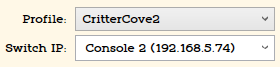
Choose which profile and Switch IP this island tile is using. You can swap profiles or IPs on the fly without opening another menu.
 Connect
Connects SDT to the selected Switch IP
 Disconnect
Disconnects SDT from selected Switch IP
 Open Gate
Open your gate automatically.
 Close Gate
Close your gate automatically.
 Anchors
Custom set your wait position.
 Freeze
Starts or stops map freezing for treasure islands
 Map Editor
Custom version of ACNHPokerCore
 Map Helper
Transparent background PNG of your island paths
 Map Cataloger
Interactive searchable item map for the website

Status Bar — Connection status, visitor count, flight status, session info
Host Settings
Click the Host Settings button () to open this menu. These are settings related to how each island is presented on the website and Discord.
Find a deep dive about this menu and the options in it here.
Island General Settings
Click the General Settingss button () to open this menu. These are the general settings for each individual island. each island tile has its own general settings. Not to be confused with App-wide General settings, which uses a similar icon (minus the Settings label)
Find a deep dive about this menu and the options in it here.
Activity Log
Click the Activity Log button
() to open this menu.
Click each section below to expand it and see the activity log events that are captured for that topic.
✦ Connection
Switch connected successfully! — connected
Connected to [IP]:[port] — technical connect line right after
Failed to connect to Switch — couldn’t reach the Switch
Connection failed: [reason] — more detail when something throws
Disconnected — you disconnected from SDT
Switch connection lost. — dropped unexpectedly
Connection lost cleanup: [reason] — during disconnect cleanup
Not connected! — if you try gate actions while offline
Letting connection settle... — brief pause after connect
✦ Gate opening
Typical order (outdoors path). Waits use your island’s timing settings (seconds shown as X).
Opening gate...(If player glitches, wait 15 seconds - it may self-correct)Location detected: INDOORSorOUTDOORS- If already indoors:
Already indoors - teleporting directly to Orville...(skips airport walk) - Otherwise:
Teleporting to airport entrance... Walking into airport... DO NOT TOUCH CONTROLLERWaiting Xs for airport entry loading...Teleporting to Orville...>>> TALKING TO ORVILLE - DO NOT TOUCH CONTROLLER <<<Teleporting to exit...Walking out of airport...Waiting Xs for airport exit loading...Teleporting to spawn position...- Then banner lines:
>>> GATE OPENED! YOU CAN MOVE NOW <<<and>>> DODO CODE: [code] <<<
If something went wrong: Failed to open gate: [reason]
✦ Gate closing
=== CLOSING GATE ===
Location: INDOORS or OUTDOORS (close path uses this label)
Then Orville path: teleport / walk in as needed, Waiting Xs for airport to load... (sum of your close-gate wait settings), >>> CLOSING GATE - DO NOT TOUCH CONTROLLER <<<
Success banner: >>> GATE CLOSED (waiting at Orville's counter) <<<
Gates already closed — skipping close gate sequence.
Session flag looked open once, but no valid Dodo code in memory — treating gates as already closed. (why close was skipped)
Errors / abort: Error closing gate: [reason], Gate closing aborted!
End session (minus menu): === ENDING SESSION (sending visitors home) ===, Waiting for session to end..., === SESSION ENDED ===, or End session aborted! / Error ending session: [reason]
✦ Abort
From the Abort button: Abort requested – please wait...
Aborting gate opening... / Aborting gate closing...
>>> GATE OPENING ABORTED <<< plus a note that you may need to finish Orville manually
✦ Crash & auto-restore
Gate closed - crash or manual close detected!Auto-restore: Waiting for error screen to fully load...Auto-restore: Dismissing error screen (pressing B)...Auto-restore: Waiting for game to reload (player appears outside airport)...Auto-restore: Game should be reloaded. Starting gate open sequence...Auto-restore: Gate reopened successfully!
If auto-restore can’t finish:
Auto-restore skipped: anchors not set. Set anchors to enable auto-recovery.Auto-restore PAUSED (firmware safety mode). Disable in settings when Atmosphere is updated.Auto-restore failed: [reason]Auto-restore: Gate open failed - [reason]andAuto-restore: Will retry on next monitor cycle if gate is still closed.
✦ Map freezing & zones
Auto-freeze enabled, starting...
Clearing all freezes... / Clearing any stale freezes...
Failed to load map file, will capture current state
Order-zone sync (TI): [Zones] Loaded N zone(s) from disk for profile "...", skip lines like [Zones] Sync skipped — ..., [Map] Could not reload exclusion zones: [reason]
Freezer: lines prefixed with [Map] from the map freezer
Villager freeze (non–villager-mode islands): [Villager] lines from the villager freezer; [Villager] Error on freeze state change: [reason]
✦ Villager prep (behind the scenes)
You may see [VillagerPrep] Skipped — ... (gate busy, suspended, debounce, etc.), [VillagerPrep] Cancelled., or [VillagerPrep] Error: [reason]
✦ Visitors
Visitor incoming: [name] from [island] (awaiting list confirmation)
Visitor arrived: [name] from [island]
Visitor departed: [name]
Fetched N existing visitor(s) on island
While loading the list: [Fetch] Starting visitor list fetch..., [Fetch] ReadVisitorListAsync returned N slots, [Fetch] Added to known: '[name]'
Could not fetch visitor list: [reason]
[Init] Arriver slot initialized with: [name] (no trigger - old data from RAM, no action required) — once per session, avoids false “incoming” on connect
[Villager] Delayed re-check after departure... — optional follow-up when villager freeze is on
✦ Villager rotation
[Villager] Rotation mode activated (settings changed)
[Villager] Rotation enabled but no valid villagers in list — staying in restore mode
[Villager] Rotation enabled in settings but no valid villagers in list — using restore mode (on connect)
[Villager] Switched to restore mode (settings changed)
✦ Anchors
Anchor Setup still shows lines like Anchor 1: Coords=…, Rot=…, IsSet=… (byte values, not map coordinates).
Cannot open gate - anchor calculation failed! / Cannot close gate - anchor calculation failed.
Using custom wait position (Anchor 1) — when recalc keeps your manual wait spot
Order fulfillment bot: may log Cannot open gate — save anchors 1–4 on the island (host wait, outside door, Orville, inside exit).
✦ Other
Settings reloaded from disk
Instant text enabled. (note the period)
Gate is open! / Gate is closed - open it in-game or click 'Open Gate'. — state hints from the monitor
Island: [town name] / Could not read town name: [reason]
Dodo code: [code] / No valid dodo code in memory - gate may be closed / Error reading dodo: [reason]
Monitor error: [reason] — rare loop failure
FAQ Icon
Click the FAQs button () to open this page anytime.
Large Dodo code area
This is the most visible part of the panel. When your gate is open, the Dodo code appears here in large text for quick viewing.
Code action buttons
Under the Dodo code is a row of quick actions:
- Copy - copies the current Dodo code
- Hide Code - hides the code on the detail panel only
- Hide Page - hides this island from the website (solo and team)
- Clear - manually clears the displayed code from the panel
Profile & Switch IP dropdowns
You can swap which existing profile or Switch IP is being used by an island tile at anytime, keep in mind that the previously paired profile will not be stored as a tile pair, the new profile you select takes its place in the existing Tile Pair.
Learn more about profiles here.
Connect / Disconnect
Use Connect () to connect SDT to your Switch.
After connecting, the button turns into a red Disconnect button (), click it to disconnect SDT from your Switch, this also auto clears any current map freezes.
Connecting to your Switch uses sysbotbase. Learn more about that here.
Anchors
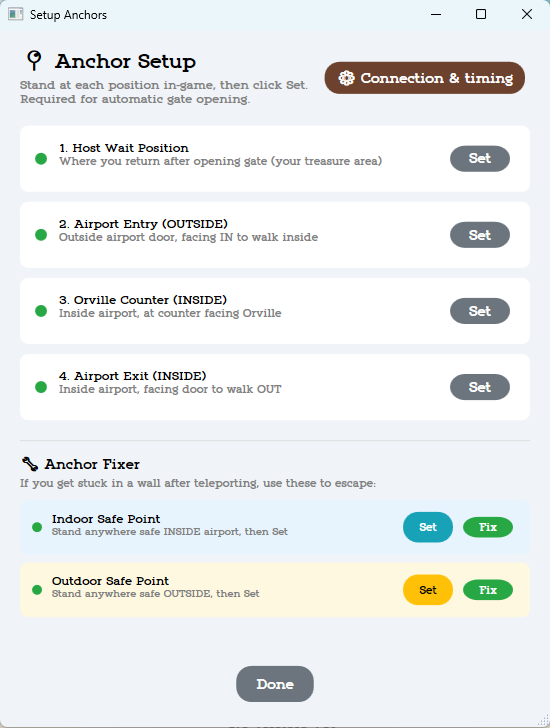
The Anchors button () opens Anchor Setup, where you can optionally set a host wait position (where your player stands after opening the gates).
- Reads your save data when you connect or open gates
- Finds your airport coordinates
- Calculates all 6 anchor positions automatically
- Default is the pier in front of the airport
- This is where your character stands after automatically opening your gates
You’ll be able to create automated host behavior like walking paths, reactions, and messages so your player appears active on the island.
Freeze
The Freeze button () starts or stops map freezing. When active, it fills in so you can tell it is running.
You can use the order zone excluder to exclude specific zones from being frozen. Useful for hosting orders, giveaways, or games on an active Treasure Island.
You can generate a freeze map for each island in it's general settings menu, this auto-assigns the file path.
Open Gate / Close Gate / Abort
These are your main gate control buttons:
- Open Gate () - starts the airport automation and reads the Dodo code
- Close Gate () - closes the gate through automation
- Abort (
 ) - stops the current open/close process if something goes wrong
Click Open Gate in Super Dodo Terminal. Then don't touch your controller! You don't have to remove your controllers. Virtual controller coming soon.
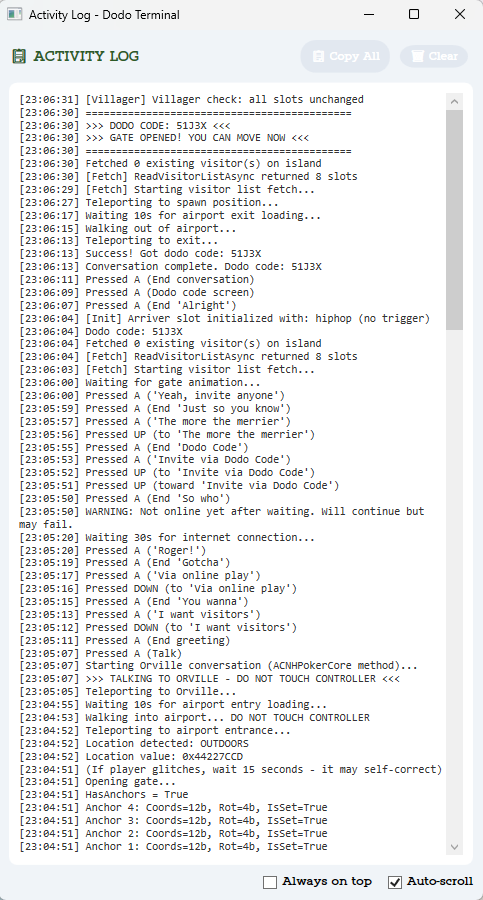
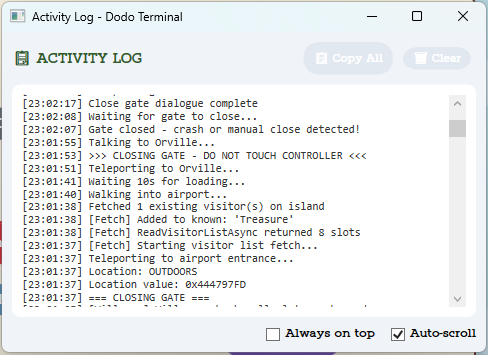
The program takes over---
- Teleports your character to the airport entrance
- Walks into the airport
- Teleports to Orville and handles the dialogue
- Opens the gate and reads the Dodo code
- Exits the airport and returns to your spawn point
⇛ Map tools
SDT has several tools for working with your island map to help you create everything you need to host.
➸ Map Editor (Dodo Editor)
Click Map Editor () to use Dodo Editor*, an altered version of ACNHPokerCore. My favorite addition is being able to place paths and roads from the Map Dropper window,making it easier to mark no-fly DIYs and more.
Find a deep dive aboutthe Dodo Editor here.
➸ Map Helper
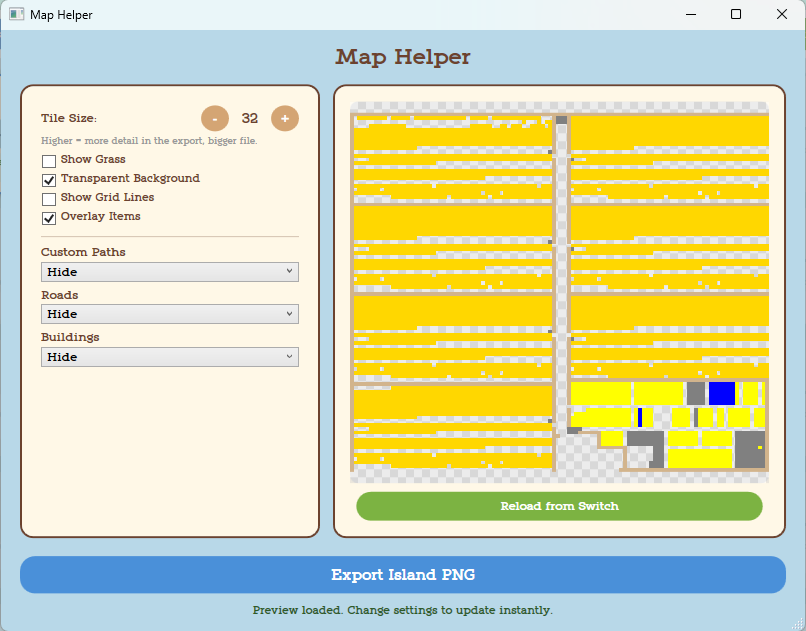
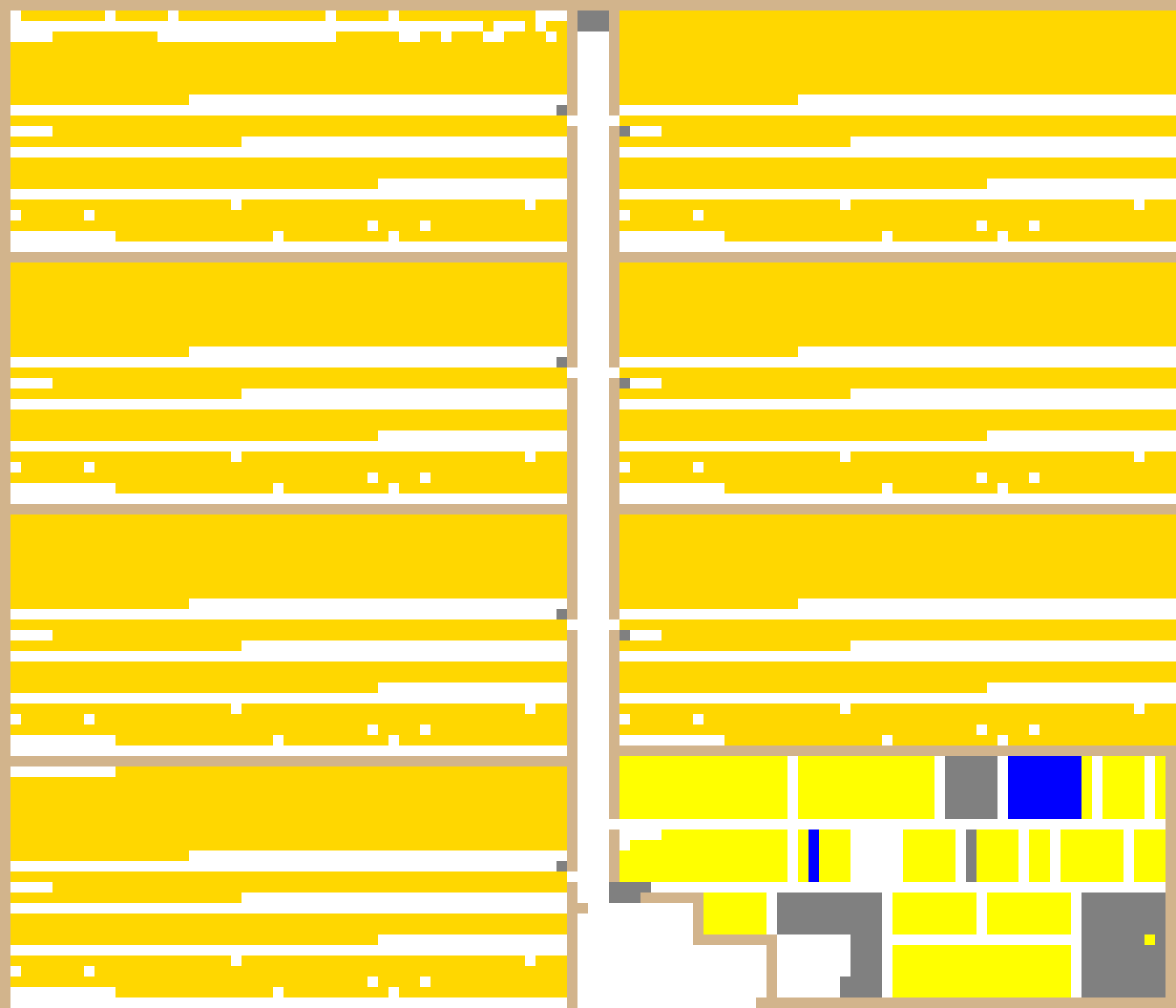
Click Map Helper ()to use the image exporter. This can create several variations of a pixel map (thanks to ACNHPokerCore) which can then be used to help you create graphics for your website or other purposes.
Eventually I'll add a better explanation for how to use this tool but overall it's mostly self explanatory.
If you want to generate maps that show the patterns and/or item pictures you need to use 128 Tile Size or the image will be too small.
➸ Map Cataloger
Creates an interactive catalog of items on your island for your website.
This map is fully interactive including: -displays list of items found here (with 20 flag only) including how many -offers a search box for quick finding -tap the map anywhere to see what item is there -if an item is selected on the map or searched, all instances of it on the map are highlighted -zoom and scroll
Coming soon: Website search page which can list every island an item is found on based on the interactive map catalogs
⇛ Status strip
Quick look view for:
- Connection status - connected, disconnected, or reconnecting
- Visitor count - always 1/8 to account for the hosting player when gates are closed/no visitors
- Flight status - shows when someone is flying in or out, or if the Airport is Idle
- Session timer - for a future feature, currently opens the timer which includes an "auto-close gates when timer ends" functions

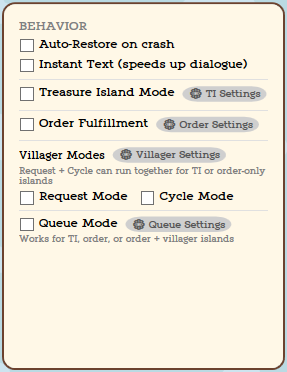
⇛ BEHAVIOR
You may come across older material mentioning the previous layout. Refer to this section for the most up-to-date information.
Need help figuring out which settings you need?
Use this tool to figure out which exact settings you need for each type of island you'd like to host.
How should visitors join?
What kind of island is this?
What should the website offer?
Take villager requests (Request or Cycle mode)?
Take item orders (Order fulfillment)?
Use this as a guide in the island Behavior panel
Behavior diagram (screenshot)
⇛ What each behavior does
Everything below is part of the same Behavior area on the island panel. The overview screenshot is above. Click a heading to open or close that behavior. Extra screenshots are shown inline (smaller); use Click to zoom on each to enlarge.
➸ Auto-Restore on crash (get new dodo)
) while auto-restore is on, it is automatically paused until the next time you run Open Gate (), which turns it back on automatically.➸ Instant Text
➸ Treasure Island Mode
 to generate or assign a Freeze map file. This panel will also be used for another feature soon.
➸ Order fulfillment
 to open order settings. Stop the bot, pause the API, set messages, stay time, exclusion zones, timeout settings, or handle presets here.
Click to zoom
➸ Villager modes
- Request Mode — uses House 0 for injecting requests
- Cycle Mode — click visitors.txt (Cycle List) (
 ) and add one name per line. SDT auto-pairs to the closest valid villager and cycles through injecting them as current villagers are adopted.
Click to zoom
Click to zoom
➸ Queue mode
 ) to edit messages, stay time, and see the current queue list.
Click to zoom
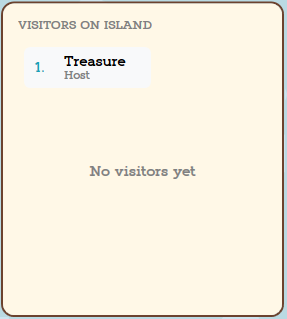
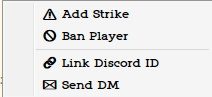
⇛ Visitor list & Mod Tools
➸ Visitor list
Shows everyone currently on your island:
⇛ What's next
- Super Dodo Terminal - Main grid, toolbar, platform tags, app-wide settings, backups
- Getting Started - First-time setup
- Discord - Bot, webhooks, queue
- Your Website - How islands appear online
- Troubleshooting - Connection and gate problems
