

Super Dodo Terminal (SDT) is your main control center. It connects to your Switch, opens and closes gates, freezes your map, tracks visitors, and runs most updates to your Website or Discord server, all from one window. It can handle one island or dozens at the same time. There is no island limit, but keep in mind it's only been tested with 8 individual switches at once so far. If you host with more, please give me feedback if any.
New here? Work through Getting Started first (sys-botbase, Switch IP, profiles, anchors, first gate open, and optional file-organization tips).
The Main Window
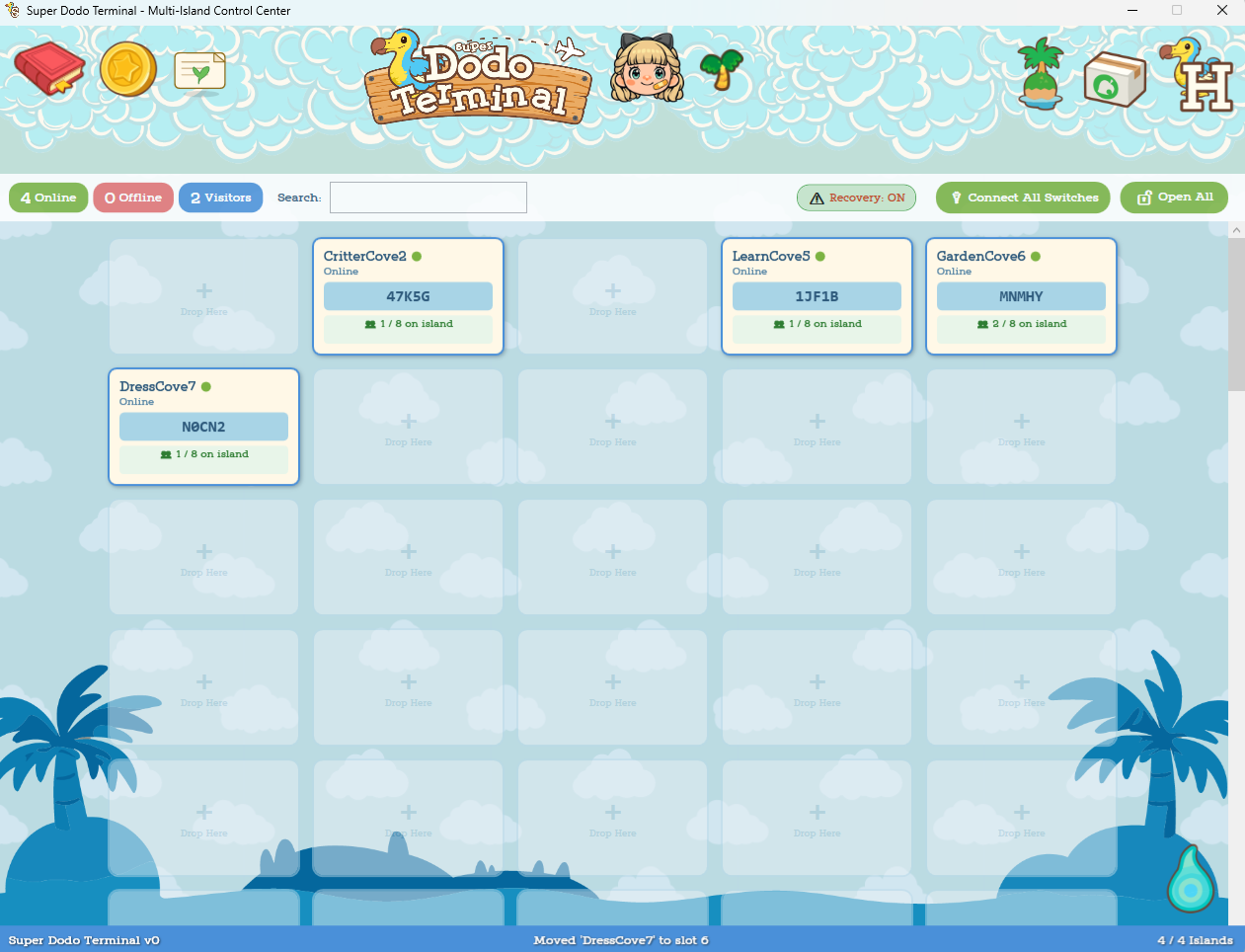
When you launch SDT, you see the Multi-Island Control Center with Header Icons, a Tool Bar, and a grid of island tiles.
Header Buttons










Toolbar


Click to filter the grid.

Find islands by name.

Pauses auto-recovery across all islands.

Connects all islands with IP + anchors set.

Opens all connected islands at once.
This toolbar is a work in progress, eventually you'll be able to freeze and catalog all islands from here too.
Recovery on/off is a safety measure to use after updates to ACNH/Switch Firmware if you're nervous about the bot accidentally updating your game/console. This turns off all recovery features and requires manually clicking "Open Gate" after clearing the crash pop-up on your switch.
What's on Each Tile
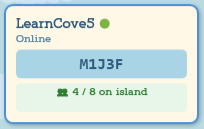
- Island name and status (connecting, online, offline)
- Dodo code (when the gate is open)
- Visitor count (e.g. 3/7)
- Platform tag — shows where this island is posted (Website, Discord, Facebook, or Disabled)
- Group badge — if this island belongs to a group
- Monetization badge — if turned on for that island
Island Detail Panel
When you click an island tile, it's Island Details Panel* will open.
Feature Deep Dive
➸ General Settings (whole app)
App-wide settings (**not** per-island). Open General Settings () in the **top bar** (header).
Visit the General Settings page for a deep dive on the settings in this panel.
➸ Monetization Tools
Tools to help you streamline website subscriptions using Paypal. Open Monetization tools () in the header.
Visit the Monetization Tools page for a deep dive on setting up these tools.
➸ Inbox
All end-user submitted reports and requests on the website come to this inbox. For team websites, all team members get a copy of each report and request. Open Monetization tools () in the header.
You currently cannot reply back to these messages but it's in my to-dos.
➸ Profile Viewer & Editor
A profile is the saved “settings package” for one actualisland map: Switch IP, names, maps for the website, group badge, and everything Host Settings / Bot Settings / orders hook into.
You create a profile for each unique Treasure Island & Console pair. You can change the console paired to the profile anytime, or duplicate it to add a second console running the same island using the same settings. Edits to the duplicated profile do not also edit the original.
Use "Duplicate" to create backups of island settings before making changes you're unsure of.
Why that matters: You can clear a tile from the grid and add it again without losing settings, see Step 3 of Getting Started
View and edit profiles, revive cleared island tiles, set groups, and manage Switch IPs here. Anchor Setup is on each island’s detail panel while you’re connected. Open Profile Viewer & Editor (
/  ) in the header.
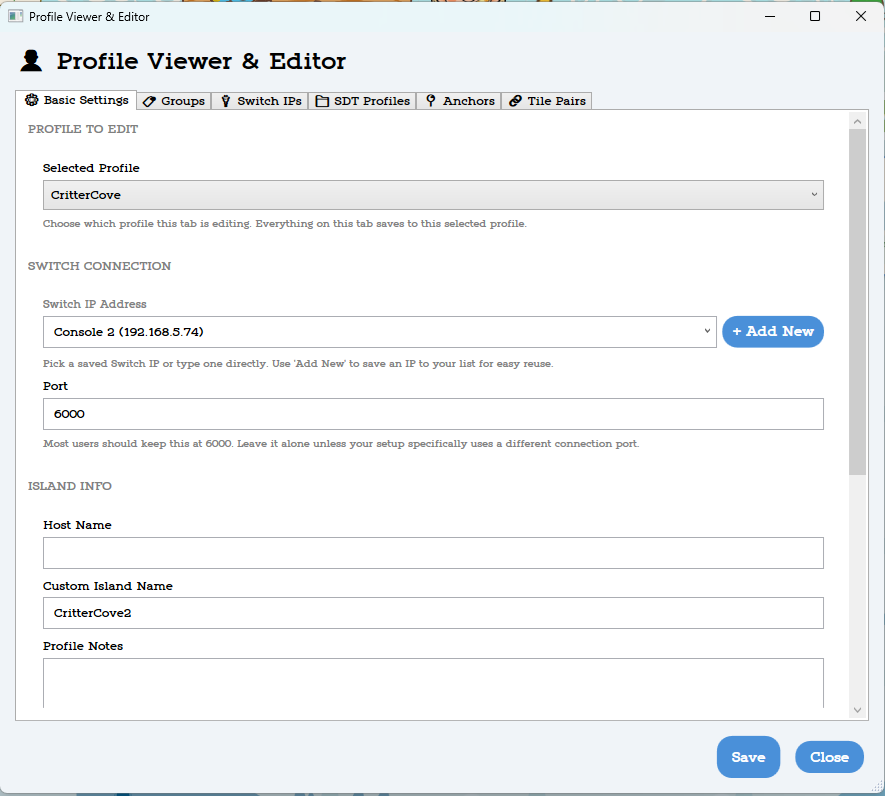
- Basic Settins - Load any profile and edit it's basic settings.
- Groups - assign profiles to groups, mostly useful for larger setups running the same island across multiple consoles at the same time. Further features for this will be added much later.
- Switch IPs - view and edit all currently saved switch IPs
- Tile Pairs - Every "cleared" tile gets stored here so you can quickly add it back anytime.
➸ Add an Island
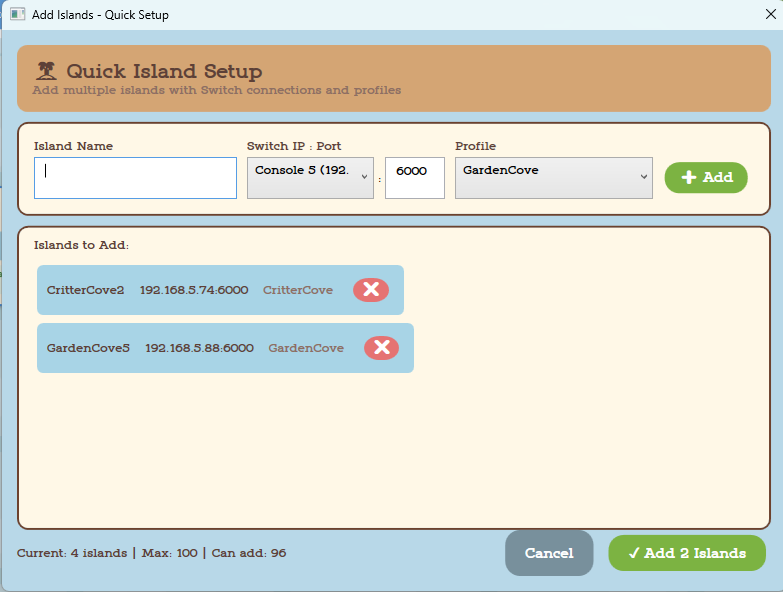
Quick setup to add one or more island tiles to the control center. Click the Add Islands button ()
to open the Add Islands - Quick Setup panel.
Treasure Island Name + Console Number/Name (ex: Garden2)
Use the dropdown menus to select a Switch profile and a Treasure Island profile.
When you click + Add, you’ll see a preview in the panel.
Continue adding islands, or click ✔ Add All Islands to finish.
➸ Island Migrator
A quick and easy way to manage using a Treasure Island on multiple consoles. Click the Island Migrator button ()
to open the Add Islands - Quick Setup panel.
Visit the Island Migrator page for a deep dive on how profiles work and more.
➸ Setup Helper
A quick and easy way to manage updating SDT and running daily island schedules. Click the Furniture Box button ()
to open the setup helper panel.
Visit the Island Migrator page for a deep dive on how profiles work and more.
➸ HostHelper Shortcut
Built in shortcut to launch HostHelper from SDT. You can also set SDT to auto-lauch HostHelper when SDT is opened under general settings. Click the HostHelper Shortcut ()
to launch HostHelper.
Visit the HostHelper page to start learning about how this app works. I recommend setting up at least 1 island completely before exploring and begining HostHelper setup.
➸ Issue Export
This icon exports a clean copy of your SDT and HH setup. This may be needed to assist with certain issues or guiding setup. When needed you'll be asked to export and upload it to Google Drive, then invite TheDodoSuite to be a contributor on the folder. This gives me access without making your export public.What You Should Explore Next
- Island detail panel — Anchors, gates, freeze, map tools, menus, logs, FAQs
- Profiles & Switch IPs — Profile Viewer and Switch labels
- SDT monetization tools — Orders and monetization window
- HostHelper — Team dashboards and custom websites
