

Work through Getting Started BEFORE completing setup so you're familiar with SDT. This will help for some steps :)
Step 1
Step 1: Download SDT & HH
Find the latest releases here.
HostHelper is closed source; you will only find its .exe there. For why, read the Info tab inside HostHelper or the HostHelper wiki page.
Step 2
Step 2: Launch SDT
Start by launching only SDT. You will use HostHelper in Step 6 once you have at least one island set up to test everything.
Step 3
Recommended to go through the Getting Started guide first, then come back and pick up at step 5, this way you have a basic understanding of where things are and can easily run through setting up all of your islands before moving on to Dodo Site setup.
Step 3: Add an island tile
A profile is the saved settings package for each individual island (and the Switch used with it last): Switch IP, names, maps for the website, group badge, and everything Host Settings / Bot Settings / orders hook into.
You create a profile for each unique Treasure Island and console pair. You can change the console paired to the profile anytime, or duplicate it to add a second console running the same island using the same settings (add a number to the name). Edits to the duplicated profile do not also edit the original.
Use Duplicate to create backups of island settings before making changes you are unsure of.
Why that matters: You can clear a tile from the grid and add it again without losing settings; see Step 3 of Getting Started.
View and edit profiles, revive cleared island tiles, set groups, and manage Switch IPs here. Anchor Setup is on each island’s detail panel while you are connected. Open Profile Viewer & Editor ( /
/  ) in the header.
Acts as a database for your profiles. Profiles are stored in %AppData%\DodoTerminal\Profiles\, so even if you update SDT you do not have to set everything up again. Tabs inside Profile Viewer & Editor:
Each Treasure Island needs a profile.
A profile stores everything for that island, including:
- Switch IP
- Anchors
- Host settings
- Freeze map and behavior settings
You only need to set this up once per island.
Profiles are flexible. You can change Switch IPs at any time or move an island to another console using the Island Migrator. You can technically use the same freeze map when changing consoles. Freeze files do not store any player or town data. That means you can also use a blank map with the same acre and building layout to create island layouts, and use only freeze maps to swap what you are hosting, so you never have to deal with JKSV after setup. Future support is coming for auto-scheduling, including adjusting behavior settings per the island being hosted.
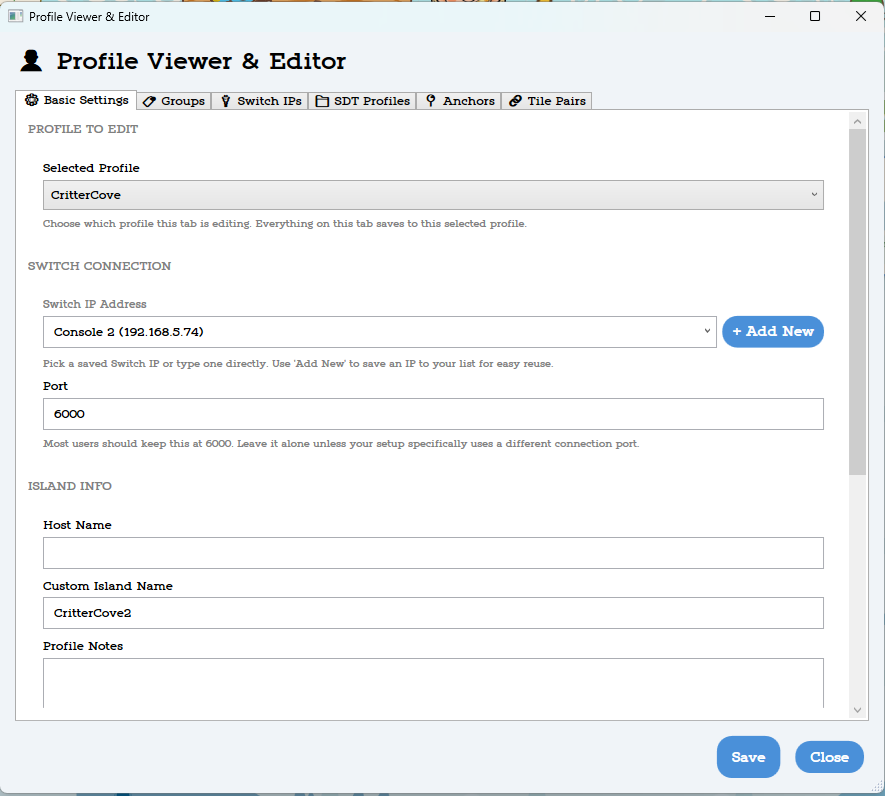
Basic Settings
Profile details
Groups
Profile groups
Switch IPs
Console IP addresses
SDT Profiles
Profile list
Tile Pairs
Island tile links
Quick setup flow
- Add your console IP(s) in the Switch IPs tab.
- Create a new profile in Basic Settings, or skip ahead and create a profile directly from Add Island - Quick Setup (
 ) in this step.
 - Repeat for each unique island.
Tip: If you are running the same Treasure Island on multiple Switches, you can reuse the same profile with different Switch IPs. That cuts setup time in half (anchors, freeze map setup, and so on).
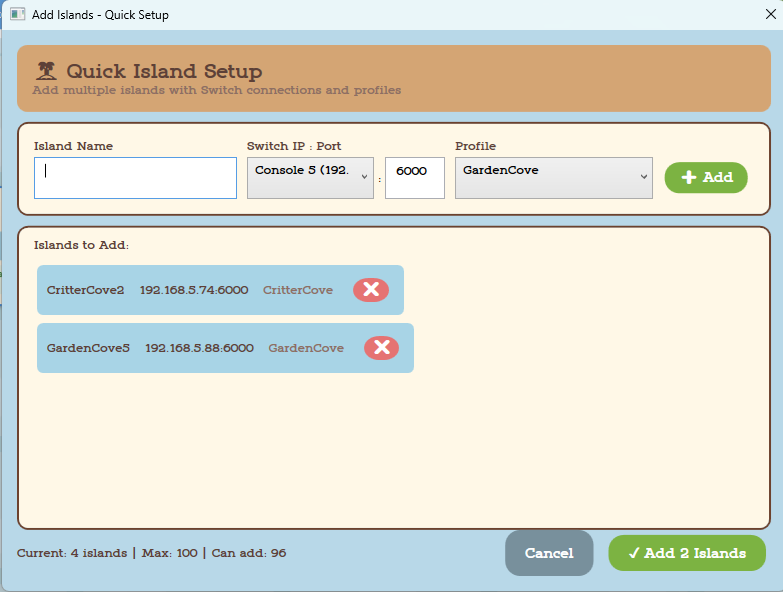
Click the Add Islands button () to open the Add Islands - Quick Setup panel.
It is recommended to name the island tile using:
Treasure Island Name + Console Number or Name (example: Garden2).
You can set a different display name later in the island detail panel.
Use the dropdown menu to select a Switch profile and a Treasure Island profile.
When you click + Add, you will see a preview in the panel.
Continue adding islands, or click ✔ Add All Islands to finish.
Step 4
Step 4
Test connecting your switch and opening your gates to confirm behaviors work as expected.
Step 5
Step 5: Island behavior setup
If you need help determining what behaviors you should turn on per island, you can use the below calculator to help you. You'll answer the questions PER island, you can use the start over button at the end to do another island if you have more than one you need help with. Visit the SuperDodoTerminal wiki page and the Island Detail wiki page to learn more about each behavior. I'll update this section eventually to include additional info/tips/tricks not really covered anywhere right now, but it'll likely be a few weeks to a month after release before I revisit the wiki! :)
Island Behavior Setup Calculator
Answer a few questions and this will land on the exact island setup guide for that hosting style.
Step 6
Step 6: Host Guide Calculator
Answer a few questions in the Host Guide Calculator to get the exact setup guide for your hosting style.
This part of the guide is easier to interact with in a new tab (larger layout, scrolling, and buttons work better than on this walkthrough page).
Step 7
Step 7
You're all done! If you skipped any part of setup you can refer to the linked guides below if ever needed! :)
Walkthroughs
You don't have to set up everything at once. Step 6 asks about Discord, subscriptions, and your hosting mode, then builds a personalized guide based on your answers. You can skip Discord and subscriptions there and come back to use the standalone guides below whenever you're ready. Step 6 orders things so you can do it all in one pass without revisiting the same menus, but there's no rush.
